Setting up a Project in IntelliJ
To set up a project in IntelliJ, please use the following procedure. (you will, of course, first need to download the lab files)
- Open IntelliJ
- Select Projects -> Open
- Select your project folder. It should be something like “cglabs-2022-lab1”

- Select Run -> Edit configurations

- Select add new, then select application
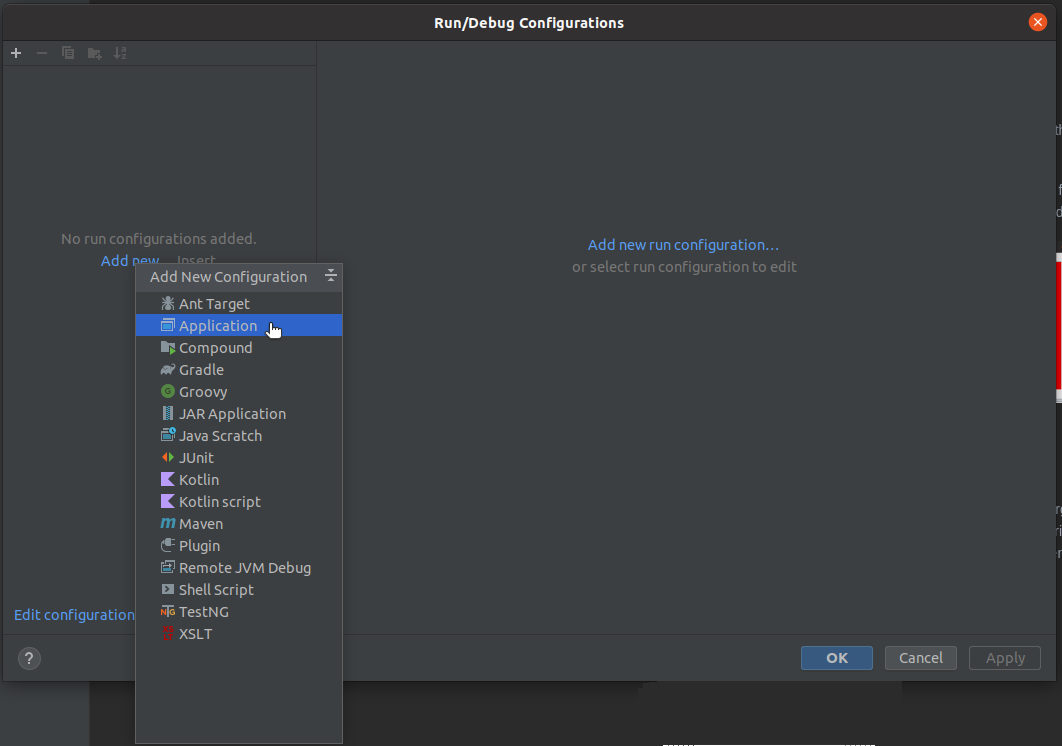
- Select Java 17, and input src.HelloWorld (or one of the other files), then clip apply.

We have found some students get stuck on step 6. If this happens, you might need to wait a while until IntelliJ indexing completes, which can take a few minutes. Once this is done, you should be able to press the icon next to where “src.HelloWorld” would be to select from a list of four different files. If this still does not work, try changing to one of the other SDKs. Some students found using ‘bundle’ to work better. Alternatively, you can try OpenJDK. If it is not listed add it by using “Select alternative JRE”, then entering “/usr/local/openjdk”.