Outline#
In this page, we will focus on conflict and its handling with simple examples. Conflicts inevitably take place while we work with others. By exploring details of commands such as git push, git pull and git merge, we will learn how to resolve conflicts under different scenario in order to smoothly incorporate teammates’ work into ours, that is, to empower parallel development.
All parts of this page are based on one setup: There are two branches that exist both locally and remotely: main and task-1. In the remote branch task-1, we have two files: README.md and print.py.
What is a conflict#
A conflict happens when the remote changes cannot be automatically merged into your local files, or vice versa. Sometimes it’s because you and another person make changes to the same file or to the same line. It can also happen when files are deleted or renamed remotely, but you have made changes to those files locally. In addition, conflicts can also arise for your merge requests. In this case, conflicts can be resolved through merging or rebasing.
Pushing#
Previously, we’ve covered how to use git commit and git push to save your work on the GitLab repository. However, your teammates who develop the same remote repository with you may encounter failure while pushing.
Assume you are in a small team of two teammates, and both of you are working on the task-1 branch. Your teammate pushed her work before you today. Now you want to push your work but encounter an error like this:
$ git push origin task-1
To https://gitlab.cecs.anu.edu.au/uxxxxxxx/yyy.git
 ! [rejected]        task-1 -> task-1 (fetch first)
error: failed to push some refs to 'https://gitlab.cecs.anu.edu.au/uxxxxxxx/yyy.git'
hint: Updates were rejected because the remote contains work that you do
hint: not have locally. This is usually caused by another repository pushing
hint: to the same ref. You may want to first integrate the remote changes
hint: (e.g., 'git pull ...') before pushing again.
hint: See the 'Note about fast-forwards' in 'git push --help' for details.
What happened? Why is your push rejected?! Don’t panic. Let’s take a look at a gif below to see what is actually goes on:
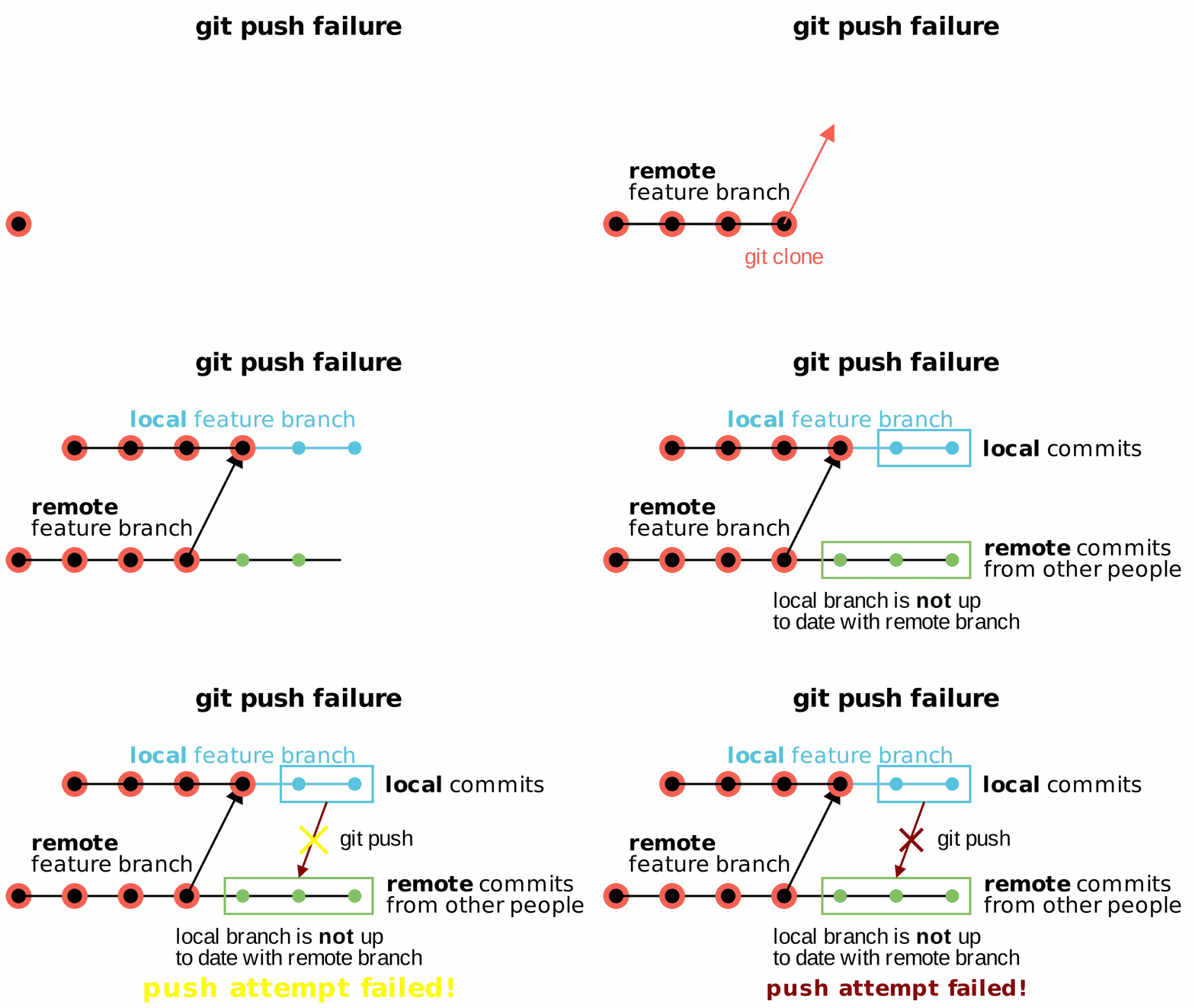
As you notice, the remote task-1 branch moved a commit forward after your teammate pushed her work. But that new commit isn’t tracked by neither you nor your local repository (You may have never heard of it!). So the version of your local repository is a commit behind the latest version! Git detects our local repository isn’t up to date with the remote version while pushing. As suggested by the above log: “The remote contains work that you do not have locally. This is usually caused by another repository pushing to the same ref.” The log also gives a solution to resolve this issue: git pull .... So let’s try it out!
$ git pull origin task-1
...
remote: Enumerating objects: 3, done.
remote: Counting objects: 100% (3/3), done.
remote: Compressing objects: 100% (2/2), done.
remote: Total 3 (delta 0), reused 0 (delta 0), pack-reused 0
Unpacking objects: 100% (3/3), 250 bytes | 20.00 KiB/s, done.
From https://gitlab.cecs.anu.edu.au/uxxxxxxx/yyy
 * [new branch]      task-1       -> origin/task-1
Now your local “task-1” branch is in sync with the remote “task-1” branch.
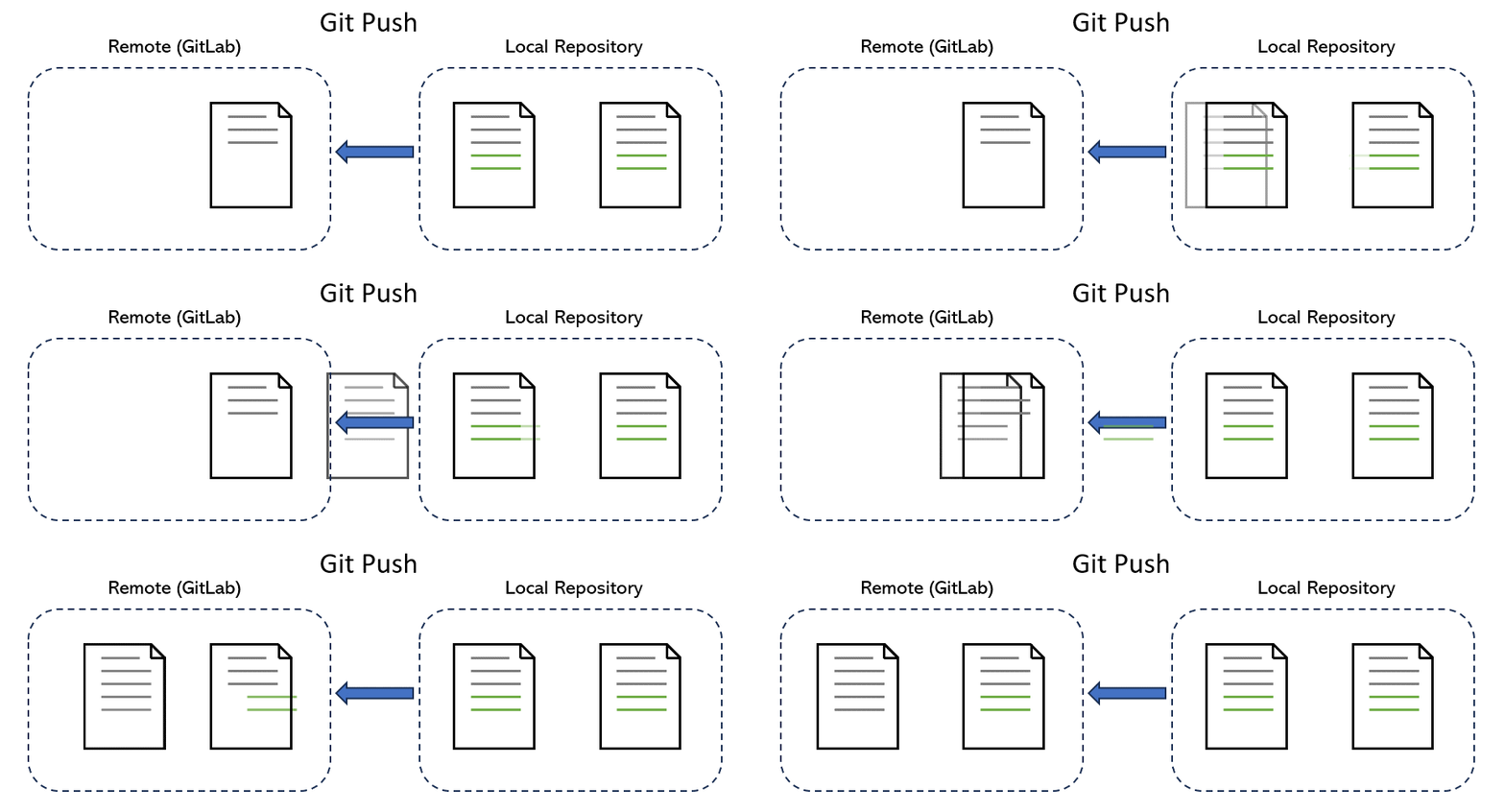
Git should allow you to push your work if you’ve successfully pulled the latest changes. You can then push your work normally just like previous chapters.
Tips: It’s a good habit to pull the latest remote changes before you start working on your task, especially for a shared branch. Otherwise you will be likely to face a pull conflict as discussed in the next section.
Pulling#
So far you have learned how to push you work in the teamwork context. The remote repository is like a central storage. We push our changes to the GitLab repository, and we also need to fetch changes from others so that our local repository stays up to date with the remote version:
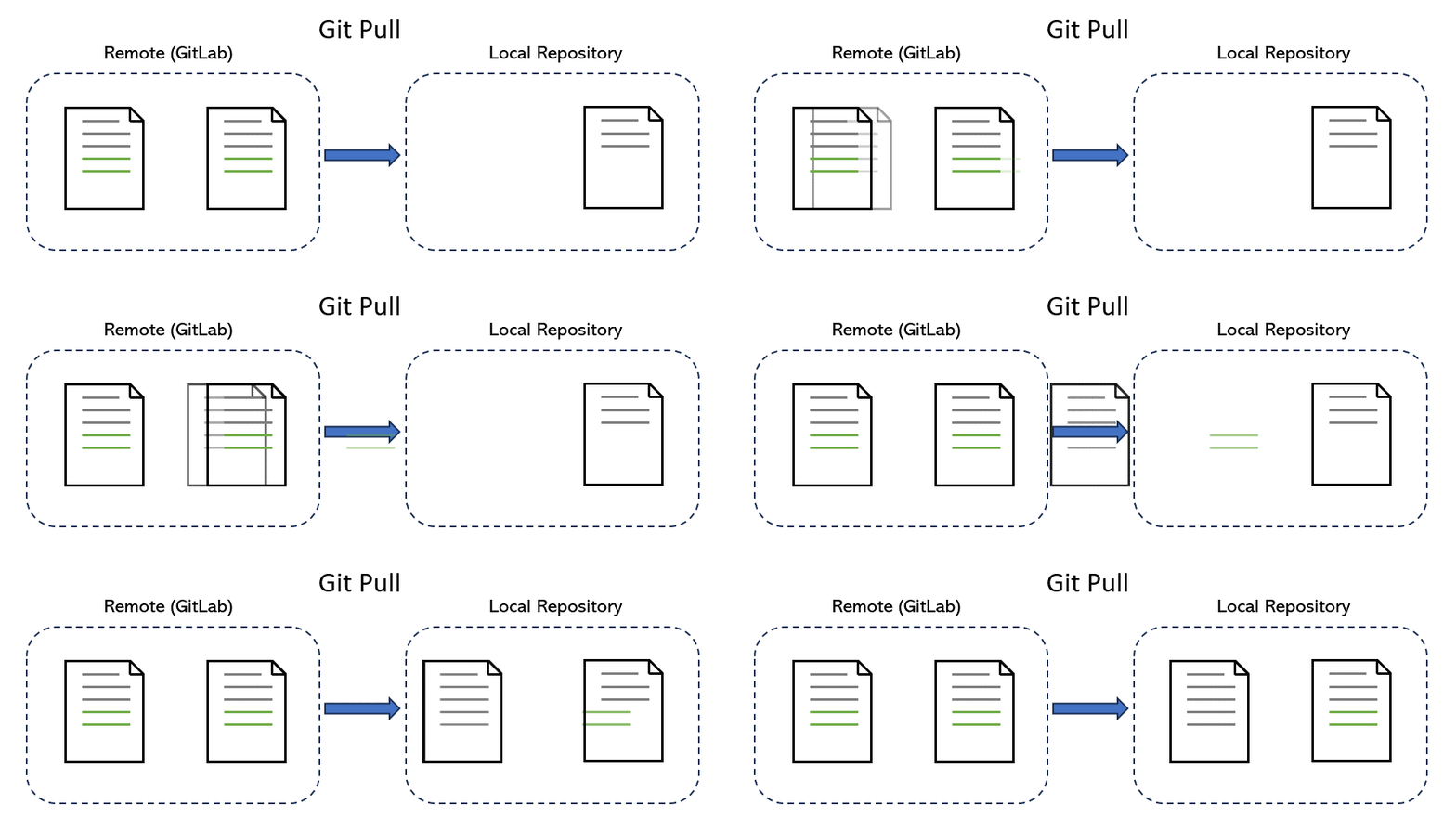
To pull the latest changes of a branch from the remote repository, we run git pull origin [branch_name], such as task-1:
git pull origin task-1
This is one simple command for pulling. But this is also the moment when things can get tricky, depending on the changes we pull. In the future, we’ll face two scenarios: with and without conflicts. Next, we are about to discuss their differences and what we should do in both scenarios.
Tips: The examples below have pre-set rebase as default strategy. The command to set this strategy is git config pull.rebase true.
Without Conflicts#
As mentioned in the outline, we have two files in the remote branch task-1: README.md and print.py.
Now assume we start contributing by creating a new file contribution.md in the local branch task-1. In the same time, your teammate pushed a new file main.py into the remote task-1 branch. Note that the remote repository now has three files: README.md, main.py and print.py, and our local repository also has three files: README.md, contribution.md and print.py. When we run git push, we will encounter an error like this:
$ git push origin task-1
To gitlab.anu.edu.au:uxxxxxxx/yyy.git
! [rejected]        task-1 -> task-1 (fetch first)
error: failed to push some refs to 'gitlab.anu.edu.au:uxxxxxxx/yyy.git'
hint: Updates were rejected because the remote contains work that you do
hint: not have locally. This is usually caused by another repository pushing
hint: to the same ref. You may want to first integrate the remote changes
hint: (e.g., 'git pull ...') before pushing again.
hint: See the 'Note about fast-forwards' in 'git push --help' for details.
Seems familiar? Simply follow the advice git pull ... before pushing again.
$ git pull origin task-1
remote: Enumerating objects: 4, done.
remote: Counting objects: 100% (4/4), done.
remote: Compressing objects: 100% (2/2), done.
remote: Total 3 (delta 0), reused 0 (delta 0), pack-reused 0
Unpacking objects: 100% (3/3), 286 bytes | 286.00 KiB/s, done.
From gitlab.anu.edu.au:uxxxxxxx/yyy
* branch            task-1       -> FETCH_HEAD
  21c83db..06ae370  task-1       -> origin/task-1
Successfully rebased and updated refs/heads/task-1.
Awesome! We finished pulling with no conflicts because the new file in the remote repository does not even exist locally. Actually, conflicts typically happen when the same file or lines within a file have been modified both locally and in the upstream repository. Now our local repository has four files: README.md, contribution.md, main.py and print.py.
Reflecting the example above, it’s a good habit to always pull the latest remote changes before starting your work. The new changes in this example are simple, but changes in real-life projects are usually more complicated. You’re likely to encounter a situation where you and your teammates have edited the same file, and this good habit ensures that you update your local files with remote changes first. This effectively reduces potential conflicts and saves you time resolving them.
In summary, we are pretty lucky in the first example. Without knowing the remote repository has been updated, we are able to pull the latest changes smoothly. Let’s see what happens if we are not so lucky and have to face a more common scenario.
With Conflicts#
Back to the previous state. Our local branch task-1 now has three files: README.md, contribution.md and print.py. After a team meeting, you and your teammates agree to finish print.py at first. But you jot down the wrong note. Your teammate added a new line of Python code into print.py and pushed it first: echo "print("Task 1: create a Python file")" >> print.py. But you added a different line of code into the same file: echo "print("Hello world!")" >> print.py. Note that print.py now has two versions in the remote and local repositories. The remote version prints “Task 1: create a Python file”, but the local version prints “Hello world!”. After finishing up your work, you want to push your changes to GitLab but encounter the same error in the first example. So you run git pull to update your local file:
$ git pull origin task-1
Auto-merging print.py
CONFLICT (content): Merge conflict in print.py
error: could not apply 86cfc3e... added print.py
hint: Resolve all conflicts manually, mark them as resolved with
hint: "git add/rm <conflicted_files>", then run "git rebase --continue".
hint: You can instead skip this commit: run "git rebase --skip".
hint: To abort and get back to the state before "git rebase", run "git rebase --abort".
Could not apply 86cfc3e... added print.py
If you see an error similar to this, you’ve encountered a conflict while pulling. To resolve conflict, we need to examine the file and manually pick the changes we want. Use any editor to open print.py; you will see something similar to the following output:
<<<<<<< HEAD
print("Hello world!")
=======
print("Task 1: create a Python file")
>>>>>>> 86cfc3e (Updated print.py in task-1 branch)
Obviously, this new conflict can be divided into two parts:
- The first part on top, starting with “HEAD”, shows the current local changes. This is what you wrote.
- The second part at the bottom shows the remote changes that cause a conflict. This is from your teammate on the remote repository.
At this point, we have to make a decision about which piece of code to keep. Let’s say we decide to keep the remote changes because we jot down a wrong note in the meeting. We need to clean up all conflict markers like <<<<<<< (or >>>>>>>) and ======= and only leave one version of them. The file after a cleanup is this:
print("Task 1: create a Python file")
Now add this change by running git add a.txt. Let’s have a look at what happens now:
$ git status
interactive rebase in progress; onto bd55071
Last command done (1 command done):
   pick 74d8f95 Update print.py
No commands remaining.
You are currently rebasing branch 'task-1' on 'bd55071'.
  (all conflicts fixed: run "git rebase --continue")

Changes to be committed:
  (use "git restore --staged <file>..." to unstage)
      modified:   print.py
Git has given us a suggested command to finish it up: run git rebase --continue. So let’s run it:
$ git rebase --continue
[detached HEAD 5546c79] Update print.py
 1 file changed, 1 insertion(+), 1 deletion(-)
Successfully rebased and updated refs/heads/task-1.
That’s it! We have finally resolved the conflict! Now you can commit your other changes and push them all together to GitLab. You’ve made it! For real-life conflicts that may exist in multiple files, you’ll need to resolve conflicts in all of these files and git add them all.
In fact, this example not only shows you how to resolve a pull conflict. It also reminds you how to potentially reduce conflicts.
If you and your teammates are working on the same feature branch, such as task-1, it’s probable that you’ll make different changes than your teammates, which could lead to conflicts when pulling. The best practice is to communicate clearly and allocate one task to one person. By avoiding multiple people working on the same branch, conflicts can be significantly reduced.
This good habit also reflects the benefit of branching. When people are all working on the main branch, you can imagine how painful that can be!
Merging#
If we want to incorporate another branch into the current branch, merging is one way to do it. Let’s recall how merging works:
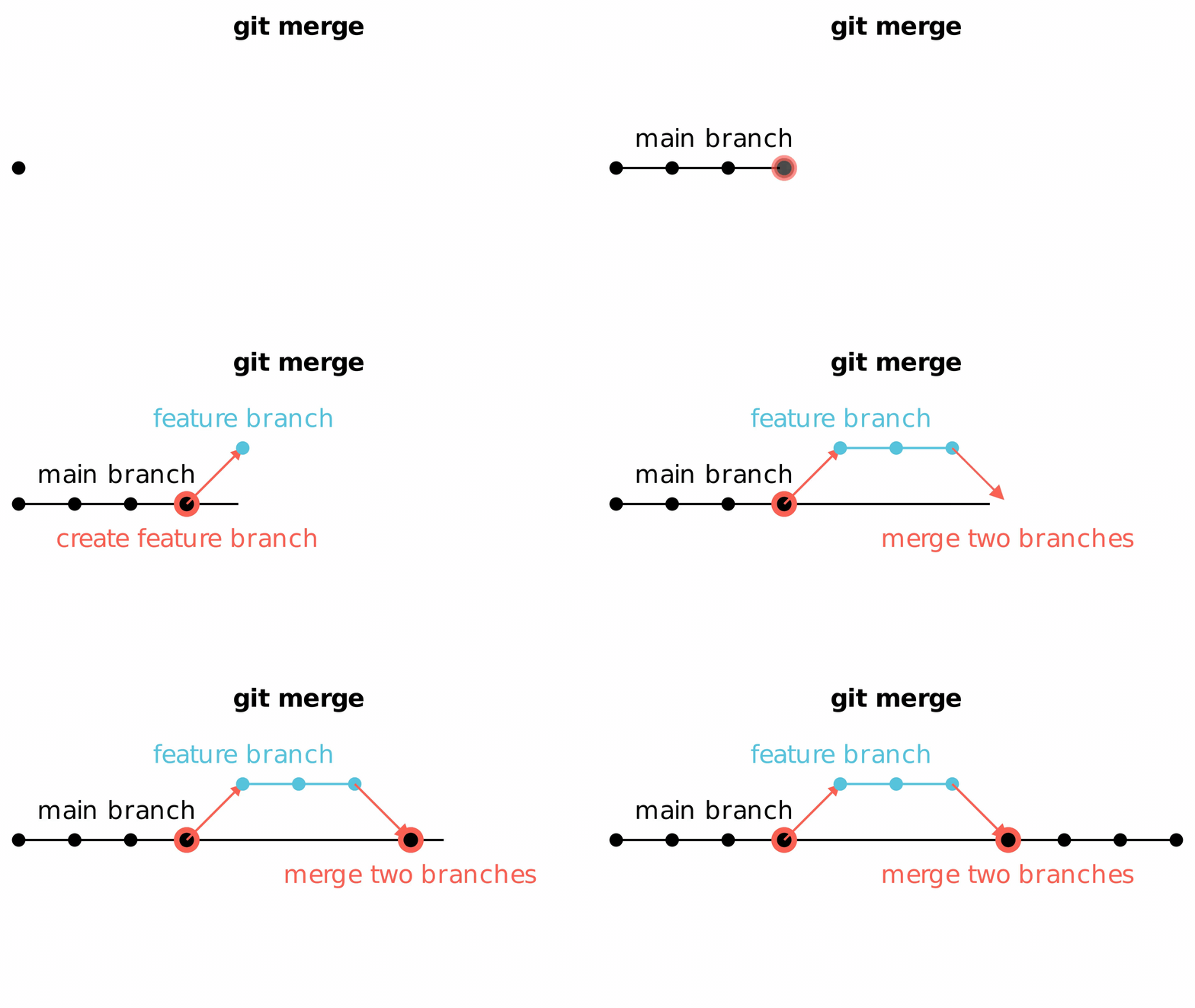
When you merge two branches, Git creates a new merge commit that combines the histories of both branches. A merge commit has two parent commits, one from each of the branches being merged. This commit records the point at which the branches were combined.
However, conflicts can also occur while merging. Let’s discover how to resolve a merge conflict in the following example.
The examples above have created three files in the remote branch task-1. Your teammate then merged it into the remote main. Now it’s time for task-2. After learning the lesson from the previous pull conflict, only you will be responsible for task-2.
It’s a good habit to pull the latest changes before starting your work. So you pull the remote main first: git pull origin main. Next, you’ll need to branch out from main for task-2: git checkout -b task-2. So far so good!
Now both local main and task-2 branch have three same files: README.md, contribution.md and print.py. Let’s assume task 2 is to update print.py. You change the first line of code from print("Task 1: create a Python file") to print("Task 2: print a line of message in the terminal"). Lastly, we committed changes of print.py in branch task-2. Note that print.py in branch main and task-2 are different now.
After another team meeting, your teammate agreed to let you merge this new change into main. So you commit your changes and checkout to main, git checkout main, and then attempt to merge task-2 into main:
$ git merge task-2
Auto-merging print.py
CONFLICT (content): Merge conflict in print.py
Automatic merge failed; fix conflicts and then commit the result.
Oops! As expected, different versions of print.py causes the conflict. Let’s see what’s going on by opening print.py.
<<<<<<< HEAD
print("Task 2: print a line of message in the terminal")
=======
print("Task 1: create a Python file")
>>>>>>> 86cfc3e (Updated print.py in task-1 branch)
This merge conflict is very like the pull conflict we learned before, but the steps of handling is a bit different.
First, we still need to manually pick a version we like. In this case, we want to keep our changes, of course.
print("Task 2: print a line of message in the terminal")
Next, in addition to run git add print.py, we also need to commit it. This is because merging creates a new merge commit that combines the histories of both branches. So we do the following steps:
git add print.pygit commit -m "Resolved merge conflict in "print.py"
Then we can check the merge result by reading the git log:
$ git log --oneline
h1i2j3k (HEAD -> main) Resolved merge conflict in print.py
86cfc3e Updated print.py in task-1 branch
...
The log confirms the conflict was resolved and the commit from task-2 was successfully merged into the main branch. Well done!
In comparison, rebasing is also popular among developers. In fact, you have seem how to do conflict handling for rebasing in the previous pulling section because that example sets rebase as default strategy. The next section will explore rebase conflict in detail.
Rebasing#
Another way to incorporate another branch into the current branch is rebasing. Again, let’s recall how rebasing works:
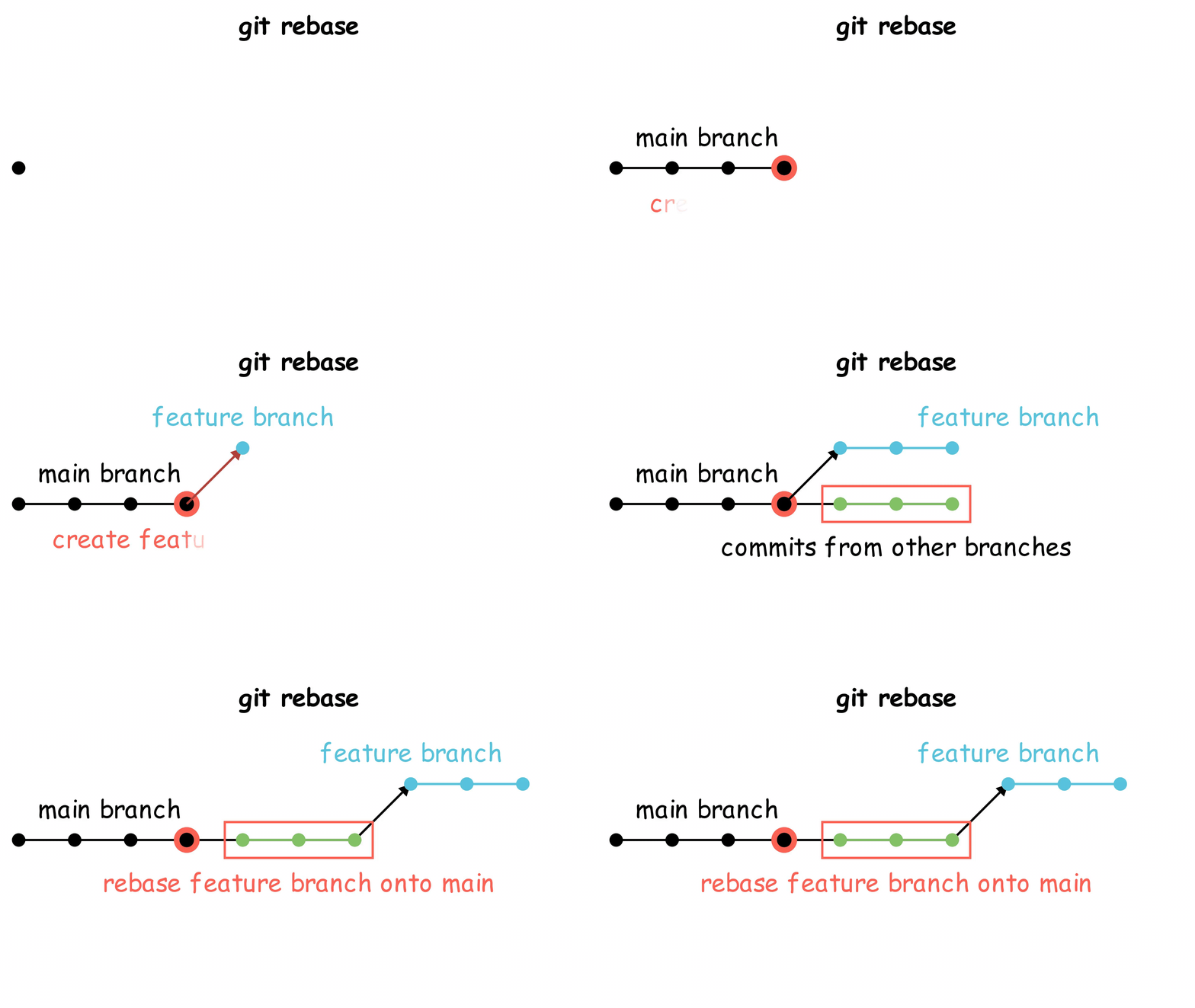
After rebasing, your current branch incorporates the latest changes from the “main” branch with your changes added at front.To show how to resolve a rebase conflict, let’s recall the example we used for handling the merge conflict.
Both local main and task-2 branch have three same files: README.md, contribution.md and print.py. Let’s assume task 2 is to update print.py. You change the first line of code from print("Task 1: create a Python file") to print("Task 2: print a line of message in the terminal"). Lastly, we committed changes of print.py in branch task-2. Note that print.py in branch main and task-2 are different now.
Different from merging, we are rebasing branch task-2 onto main, so we don’t checkout to main at first. Instead, we do rebasing right at the current branch task-2.
But before we rebase, let’s make sure our local main has incorporated the latest remote changes: git fetch main (This is also used at the second step of GitHub Workflow).
If everything goes well, we can finally start rebasing:
$ git rebase main
...
Applying: Feature update in print.py
Using index info to reconstruct a base tree...
M       print.py
CONFLICT (content): Merge conflict in print.py
error: could not apply 456def... Feature update in print.py
hint: Resolve all conflicts manually, mark them as resolved with
hint: "git add <file>" and then run "git rebase --continue".
hint: You can instead skip this commit with "git rebase --skip".
hint: To abort and get back to the state before "git rebase", run "git rebase --abort".
Could not apply 456def... Feature update in print.py
Like merging, we have a conflict for manual handling. But before opening print.py, let’s read the log and find some hints first. Actually, the log shows you how to resolve it exactly in lines starting with “hint:”. First, we need to “mark them as resolved with git add <file>”. Then we need to run git rebase --continue to resolve the next conflict. If you wish “to abort and get back to the state before git rebase, run git rebase --abort”.
But hang on! What about git rebase --skip?
If you read carefully, you will notice that we deliberatively ignore git rebase --skip in the log. This is because our example is too simple to run it. But in real-life scenario, a branch can have lots of commits. When a commit in the branch you’re rebasing onto can be safely skipped—typically because it’s redundant or unnecessary, you can run git rebase --skip to skip it. But how can you know a commit is redundant or not? Don’t worry. The log will prompts you.
Imagine your feature branch is three commits behind main. When you are rebasing it onto main, you are likely to repeat conflict handling process for three times, that is to manually resolve conflicts for each file and run git rebase --continue for three times. In this process, Git will show you what files have conflicts in the first part:
...
Applying: Feature update in print.py
Using index info to reconstruct a base tree...
M       print.py
CONFLICT (content): Merge conflict in print.py
...
This part of log lists all files with at least one conflict. Our example only has one: print.py. The letter M at front means print.py has been modified. But sometimes, Git will show you a “No change” commit like below:
...
Applying: Experimental feature in print.py
No changes - did you forget to use 'git add'?
CONFLICT (content): Merge conflict in print.py
...
You realize that the “Experimental feature in print.py” commit is no longer relevant, and you don’t want to spend time resolving this conflict. You can skip this commit by running git rebase --skip.
Awesome! Let’s start conflict handling by opening print.py and manually keeping our version of it.
print("Task 2: print a line of message in the terminal")
Next, we run git add print.py to mark it as resolved and run git rebase --continue to proceed. Because we only have one conflict in a.txt, Git will now prompts us Successfully rebased and updated refs/heads/task-2.
Great! We have successfully resolved a rebase conflict! Conflict resolution during rebasing is generally simpler compared to merging. It’s completely up to you to go for merging or rebasing as your preferred branch convergence strategy. Each strategy has its own pros and cons and there’s no need to argue which one is better than the other. However, it’s important for your team members to remain consistent in their approach.
Moving On#
Great job! You’ve now learned all the basic techniques for handling conflicts in collaboration. This page may have been the most challenging due to the amount of information and breadth covered. That’s why we used many simple examples to explain each command in detail. Your hard work will not be in vain! Congratulations to you!
In the next page, we’ll shift gears to explore GitLab CI, a continuous integration system that automates testing and deployment, ensuring that your code stays in the best shape as you develop.
Reminder: It’s completely optional to learn GitLab CI because you are not supposed to change anything in the CI process as a students. Thus, the next page only focuses on concepts.