Outline#
This page will explore how to fork and clone a remote repository on GitLab. Before we do some magic to a repository, we need first to make our own copy of it and a local copy afterwards—no need to worry as they are pretty easy to do. Simply follow the instructions below and you should be able to finish them all.
If you find it hard to keep up, feel free to start with a quick visual guide! In the video below, we’ll walk through why you should use version control and how you can fork and clone someone else’s repository in practice. These steps are essential for collaborating on your personal and team assignments.
Fork#
Imagine you are working on a group project, and each team member has their own copy of the project. In Git, a fork works in a similar way. It allows you to create your own copy of a project that is remotely hosted on GitLab. It is common to call this remote repository the upstream.
When you fork a project, you make a personal copy of it in your namespace that you can freely modify and experiment with. The original project remains untouched, and your fork becomes an independent entity. Forking is especially useful when you collaborate with others. By forking a project, you can freely make changes and improvements without directly affecting the original project or disrupting the work of others:
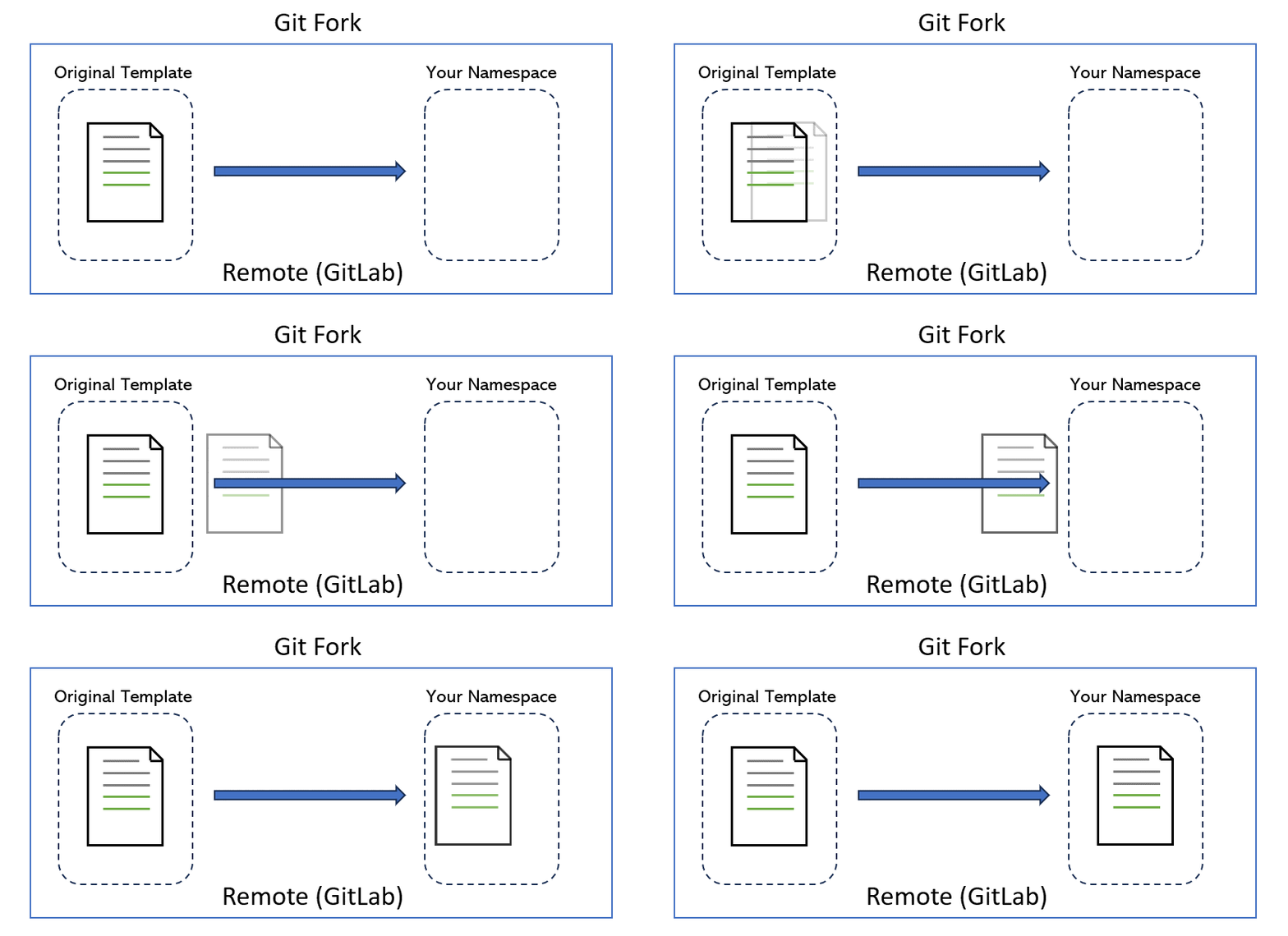
We will use an example to show you how to fork a remote repository. Let’s start by following the instructions below:
-
Log in with your uni ID & password and open a remote repository
-
Fork the repository by clicking on the “Fork” button. This will create your own copy of the lab repository:

-
Pick your username as the namespace and Private as the visibility. Leave the other settings untouched. Click “Fork Project” when done. The page will redirect you to your new fork when it is ready.
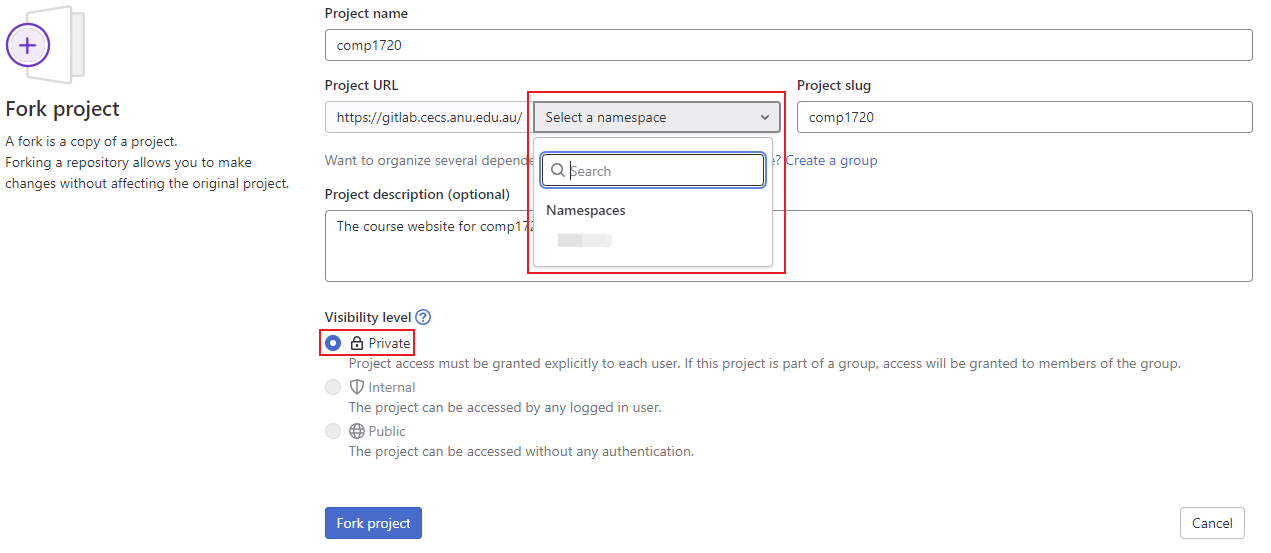
-
Check the URL bar and make sure it contains your UID, e.g.
gitlab.cecs.anu.edu.au/u7xxxxxx/comp2300-2023-lab-pack-1. This means you are looking at your copy rather than the original template.
Permission Control#
After forking, you now have your own copy of the original template. You have full control of your repo since your copy is set to be private. To collaborate with your teammates, You need to invite them to your project with a few simple steps:
- Select “Manage” > “Members” inside the navigation menu on the left-hand side:
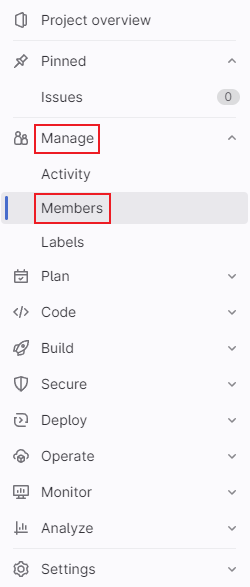
- Click on “Invite members”:

- Input your teammates’ email addresses, their roles in your project and the expiration date of their access:
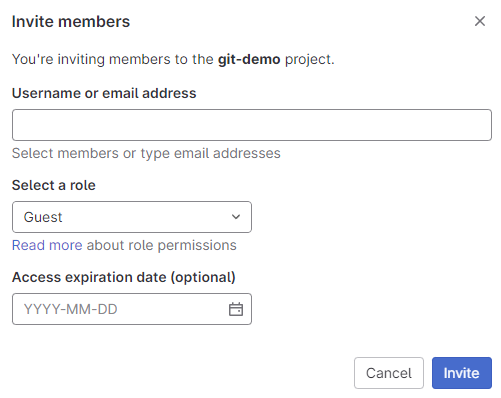
After invitation, an email will be sent to each of your teammates, and they need to confirm it by clicking the link inside.
Your First Git Command#
All Git commands are of the form git command [arguments], where command is the git command to be executed, i.e., what we actually want to do, and arguments is an (optional) list of arguments which may be needed for the particular command. That said, let us type our first command, git help, which by itself is quite helpful as it gives general guidelines on Git usage:
$ git help
usage: git [--version] [--help] [-C <path>] [-c <name>=<value>]
           [--exec-path[=<path>]] [--html-path] [--man-path] [--info-path]
           [-p | --paginate | -P | --no-pager] [--no-replace-objects] [--bare]
           [--git-dir=<path>] [--work-tree=<path>] [--namespace=<name>]
           <command> [<args>]

These are common Git commands used in various situations:

start a working area (see also: git help tutorial)
   clone      Clone a repository into a new directory
   init       Create an empty Git repository or reinitialize an existing one

work on the current change (see also: git help everyday)
   add        Add file contents to the index
   mv         Move or rename a file, a directory, or a symlink
   reset      Reset current HEAD to the specified state
   rm         Remove files from the working tree and from the index
...
You can see lists of commands categorized into different purposes from the output, such as “start a working area”, “work on the current change” and “collaborate”. Besides, git help can also give further help information on a specific command. For example, you can type git help add to see details of add command, such as what it does and what parameters it takes. You may struggle to understand the help messages as they can be cryptic for non Git users. But You don’t need to understand every single piece of Git at the moment. Don’t panic and try it out!
Clone#
If all goes well, you have forked a remote repository to create your own copy. Writing codes and operating on files directly on your web browser would be inconvenient, so let’s clone the repository to create a local copy on your computer.
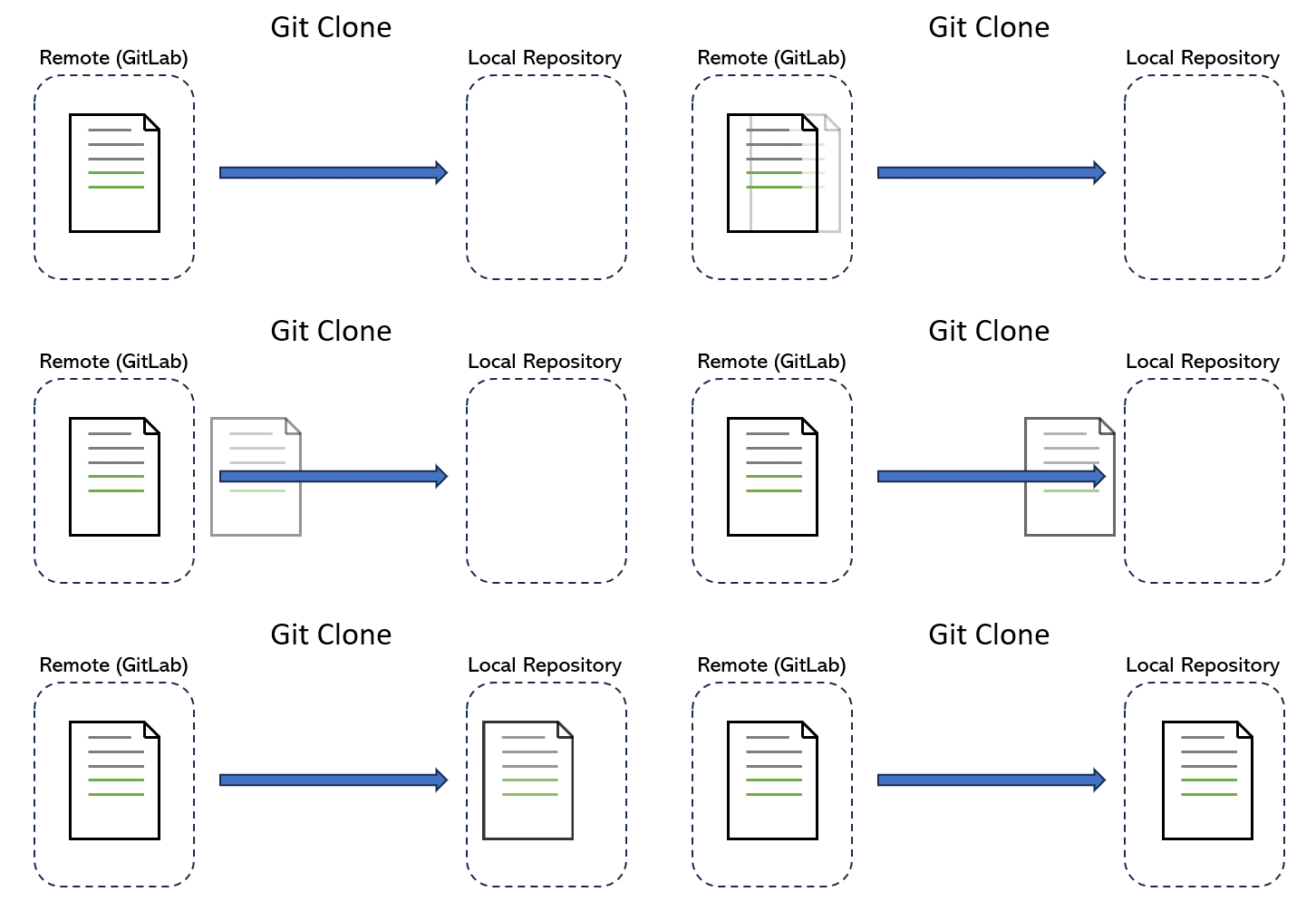
We will also use an example from COMP1720 to show you how to clone a remote repository. Let’s start by following the instructions below:
-
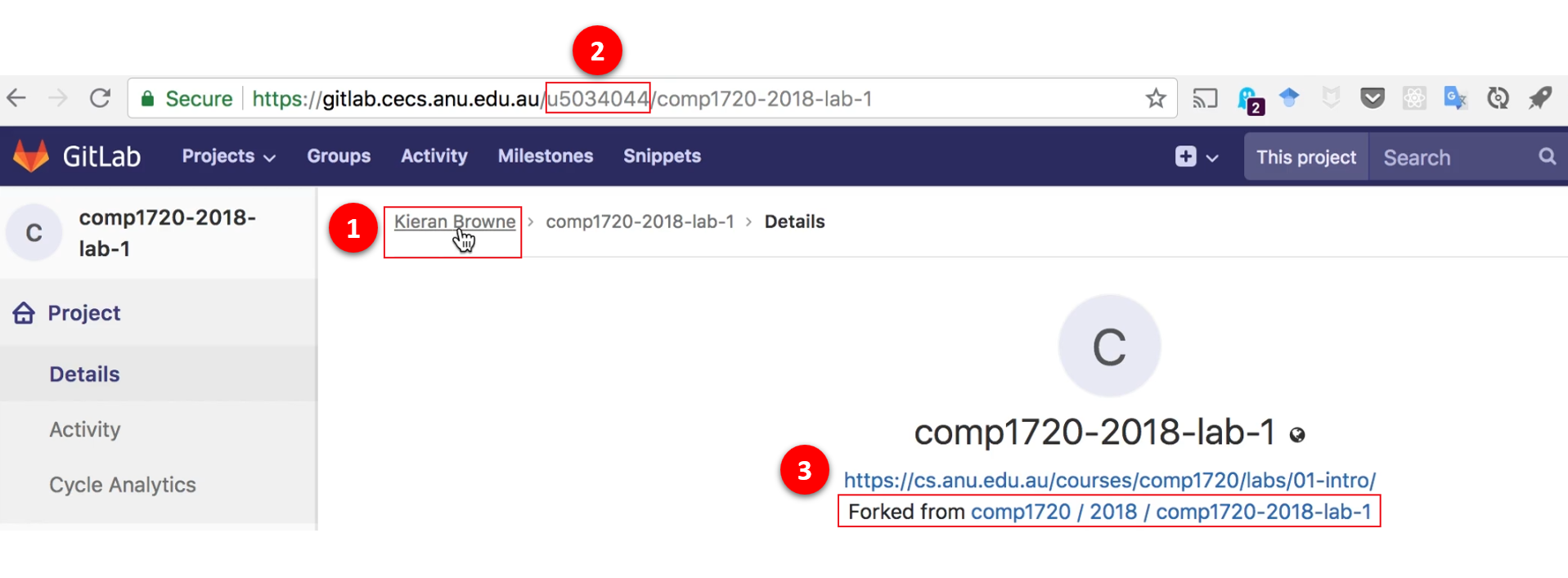
Navigate to your remote repository on GitLab. You can find out if the repository is your copy or the original template by checking the breadcrumb at the top left corner. Note: If it’s your copy, the first link in the breadcrumb shows your name rather than the course number. You can also check it by looking for your UID in the URL address and an additional line of description showing “Forked from …” under the name of your repo:
-
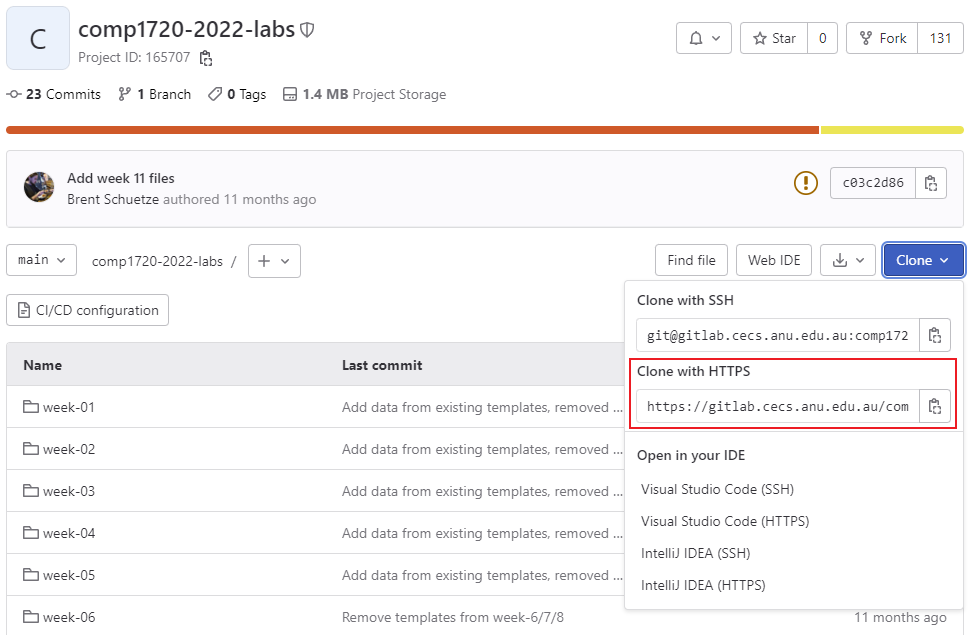
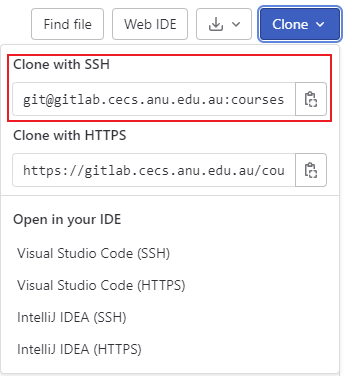
Find the “Clone” button. You can see two options after clicking it:
- If you are comfortable with using your UID and password, you may copy the HTTPS link.
- Alternatively, you can go for the SSH link after finishing additional configuration. Using an SSH key can save you time managing and entering your password.
- If you are comfortable with using your UID and password, you may copy the HTTPS link.
-
Open your Terminal (PowerShell in Windows) and navigate to a new directory for this project. You could create and go to that new repository using Finder on MacOS or File Explorer on Windows. Still, this manual aims to show you how to do so by using commands so you can clone your project using any Operating System. Note: Windows also provides WSL (Windows Subsystem for Linux) for you to run a Linux environment alongside Windows. For the setup tutorial, check out how to install WSL if you are interested.
- First, go to the parent directory where you have your projects inside after opening Terminal. You can use
cdcommand to go there, such ascd ~/projects.
Remember Tab autocompletion? Instead of typing the complete path of the target directory by hand, you can press Tab to let it autocomplete the path for you after you type the first few letters, as long as the directory exists.
- Use
git clonecommand to clone your remote repository to the local computer. The syntax of this command isgit clone [repo_link], such as
git clone https://gitlab.cecs.anu.edu.au/comp1730/2024/comp1730-2024-labs.gitPress Enter after you finish typing. If successful, you should see an output similar to the output below:
Cloning into 'comp1720'... remote: Enumerating objects: X, done. remote: Counting objects: X, done. remote: Compressing objects: X% (X/X), done. remote: Total X (delta X), reused X (delta X), pack-reused X Receiving objects: X% (X/X), X.XX MiB | X.XX MiB/s, done. Resolving deltas: X% (X/X), done. - First, go to the parent directory where you have your projects inside after opening Terminal. You can use
Add Remote#
What if you want to start by creating a local repository? Or maybe you already have a local project on your computer and want to use Git to manage it. We now know that git clone will only clone the remote project, so how to keep your local work while establishing the connection between the local project and the remote project?
Let’s start by initializing Git. To make Git manage your project, you need to use cd [path_to_your_project] to go into your project first and then type the next command to configure project details, such as project name. Just follow hints to complete this step.
git init
After you initialize a Git repository, a hidden folder called .git is created in the root directory of your project. This folder is the heart of your Git repository. It contains all the information that Git needs to track the history of your project, manage branches, and handle other essential tasks. Git will handle it internally, meaning you typically won’t need to interact with it directly. Accidentally modifying or deleting files inside the .git folder could disrupt your entire project’s version history. So just lave it alone.
Next, you need to tell your local Git repository where the remote project is at. The command is simple:
git remote add origin [URL]
The URL has two types: SSH & HTTPS. If you forget what they are, a brief explanation is at the end of page 1. You still need to navigate to your remote repository on GitLab and find it after clicking the “Clone” button:
Please pick one as you like and replace [URL] with it.
Moving on#
Fantastic! Now you’ve learned how to fork and clone a remote repository. You can now work on your local project using a text editor or IDE.
Hang in there! Check out the following pages to learn how to add, commit, push, and pull to manage your local git project and synchronize it with the remote repository on GitLab.