Introduction#
In Git, merging and rebasing are two key techniques for integrating changes from one branch into another. While both achieve the same goal of combining code, they work in very different ways. Merging preserves the full history of changes by creating a new merge commit, while rebasing rewrites history by applying your changes on top of the target branch, creating a clean, linear timeline. In this page, we’ll explore how these strategies work and when to use each.
Merging#
If we want to incorporate another branch into the current branch, merging is one way to do it. The way it works is like the animation below:
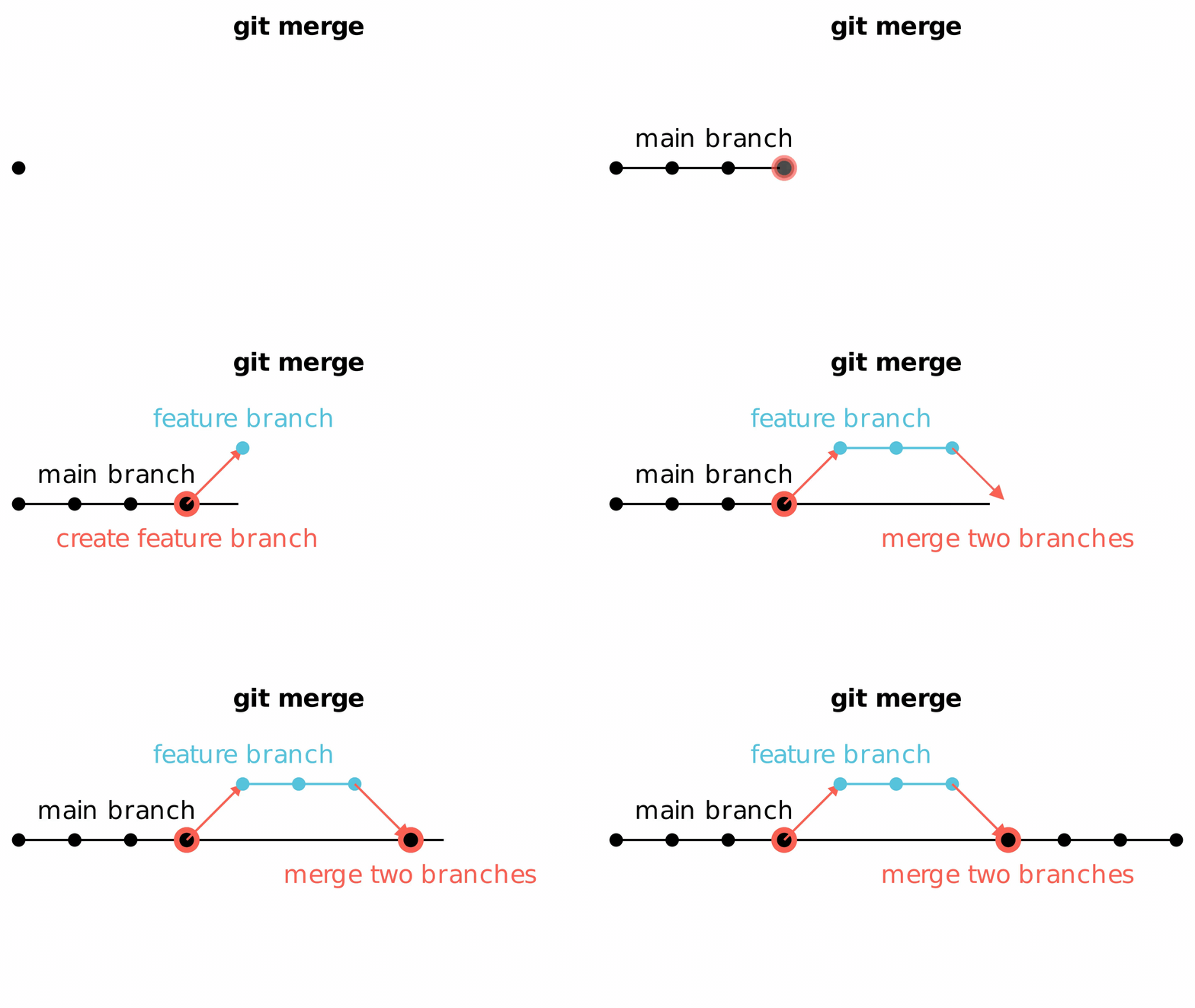
When you merge two branches, Git creates a new merge commit that combines the histories of both branches. A merge commit has two parent commits, one from each of the branches being merged. This commit records the point at which the branches were combined. If you have a visualisation tool in your IDE (such as GitLens in VS Code) and use it to check the commit history, you will see a non-linear history, showing the branches as diverged and then converged. When too many branches merge together, it can look nasty!
Despite a non-linear history, merging does have advantages. The merge commits provide a clear record of when and how branches were integrated. This is useful in some companies where engineers and developers want to preserve the pivotal context of of branch divergence and convergence. Let’s see how to merge a feature branch into the “main” branch in the next example.
First, we need to check out to the “main” branch:
$ git checkout main
Switched to branch 'main'
Your branch is up to date with 'origin/main'.
Second, it’s important to make sure the “main” branch is up to date with the latest changes from the remote repository by pulling. This additional step has multiple benefits:
- Avoiding conflicts: If the remote “main” branch has received changes from other contributors, these changes need to be incorporated into your local “main” branch sooner or later. If you try to merge a feature branch into an outdated “main” branch, the merge may cause conflicts or fail, especially if both the feature branch and the remote “main” have modified the same parts of the code.
- Preventing overwriting remote changes: If you merge a feature branch into an outdated local main and then push it, the merge may inadvertently overwrite the new changes that exist on the remote but are not in your local copy.
$ git pull origin main
Already up to date.
Great! We can finally merge the feature branch:
$ git merge feature-branch
Updating f9f1a68..3c1fe76
Fast-forward
README  | 10 ++++++++++
 1 files changed, 10 insertions(+)
This example shows that merging is completed smoothly without conflicts. If so, you can verify this merge by checking the git log:
$ git log --oneline
3c1fe76 Merge branch 'feature-branch' into main
f9f1a68 Initial commit
...
However, you are likely to encounter conflicts in this step. When conflicts take place, you’ll need to manually resolve each conflict so that two branches can be merged into one. We’ll cover this topic in page 12.
In comparison, rebasing may be more preferable. Let’s delve into what it is, how it works and why people prefer rebasing over merging in the next section.
Rebasing#
Another way to incorporate another branch into the current branch is rebasing. You can easily tell how it differs from merging from the following animation:
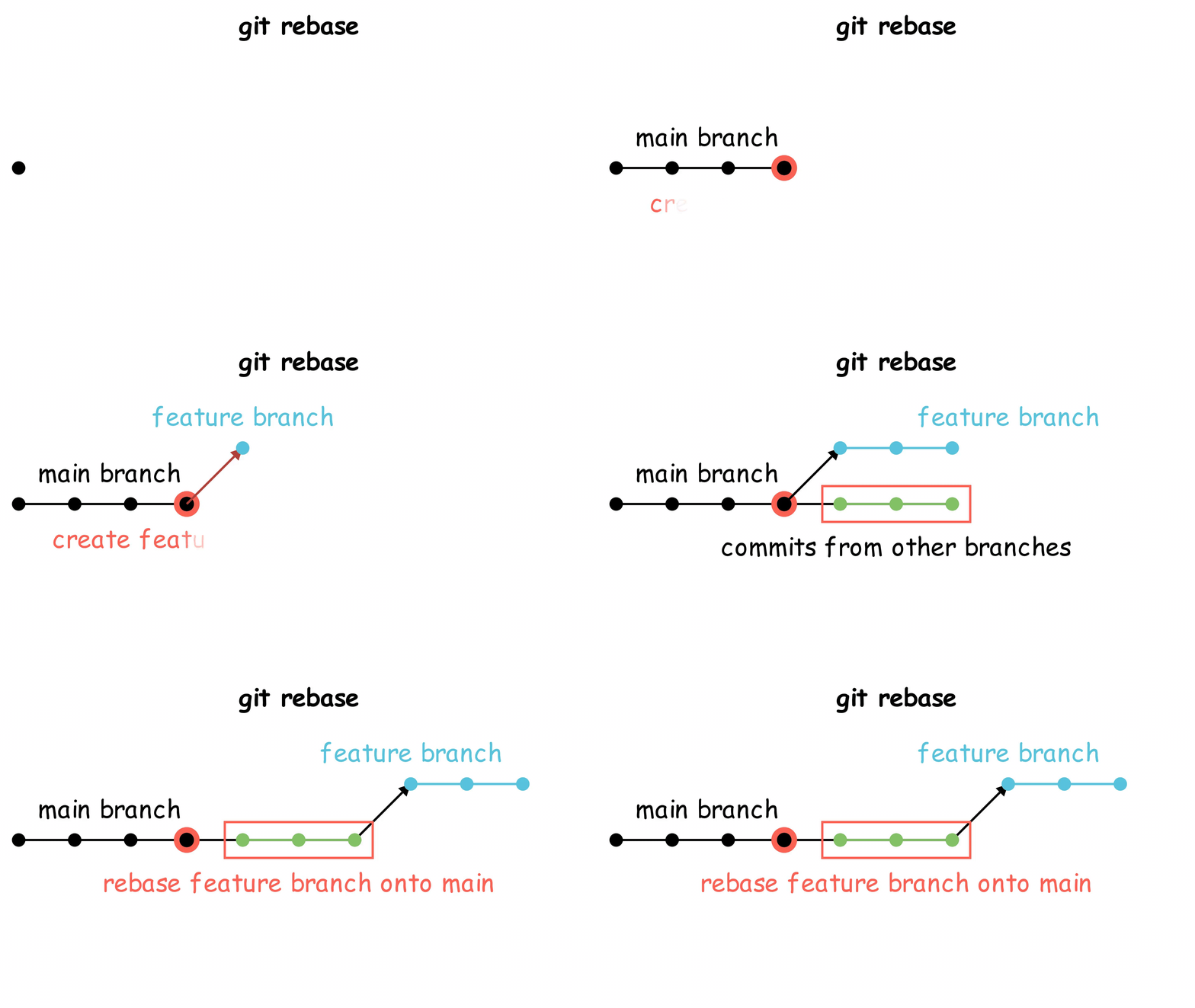
After rebasing, your current branch incorporates the latest changes from the “main” branch with your changes added at front.
The primary reason for rebasing is to maintain a clean project history. Like the animation, no extra commit is created while merging will automatically create extra commits that combines the histories of both branches. Why do we want a clean history? The benefits of having a clean history become tangible when we want to investigate where a problem was introduced into the “main” branch.
Let’s demonstrate the benefits of a clean history in this example:
You’ve found a bug in the “main” branch because a feature stops working. This feature was introduced from a previous feature branch which is now auto-removed.
To find which previous commit introduced this bug, we can:
- Use
git logto check the commit history. You may be able to quickly identify which commit is responsible thanks to the clean history and the clear commit messages. But sometimes commit messages are vague or the number of commits is too many, making this approach non-efficient or even not possible. - Make git perform a binary search through your commit history to narrow down the range of commits in order to find the one that introduced the problem. This binary search is possible because the history stays clean and linear.
Great! After discussing what rebasing is and the benefits of rebasing, let’s recall that it’s recommended to do an additional step before pushing the feature branch in a page 6 “Branching”. That additional step is rebasing onto the “main” branch. The reason for this is because rebasing the “main” branch can ensure our feature branch stays in sync with the “main” branch so that no merge conflicts would take place during the merge request. This is a good practice to avoid merge conflicts and steps are pretty simple. Here’s how to rebase the current feature branch:
- Assume we are now at the feature branch. First, we need to make sure the “main” branch is up to date with the latest changes from the remote repository. But this time, we don’t need to check out to “main” and do pulling. There’s a simpler way:
git fetch main. - If things go well, your local main is now up to date with the remote one. Now we can rebase the feature branch onto main:
git rebase main.
That’s it! Rebasing is actually very simple. But rebasing can be potentially dangerous. Just remember it’s recommended to only rebase commits that haven’t been shared with others yet (e.g., commits in your local branch). Don’t rebase public history. In the example above, our local feature branch hasn’t been shared with anyone else but the main branch is.
What’s more, like merging, you are likely to encounter conflicts in the final step too. After all, conflicts are most likely to take place when you are incorporating one branch into another, no matter how it’s done. When conflicts take place, you’ll also need to manually resolve each conflict. We’ll cover how to resolve rebase conflicts in page 12.
Ingenious Application of Interactive Rebase#
Apart from rebasing a branch onto another branch, rebasing can also remove commits! The next example will explain to you how it works.
Assume we have a git project with five commits in history. We now want to remove the 3rd one and keep the others. The commit history looks like this:
$ git log --oneline --graph
* c5a4b3d (HEAD -> main) Add feature C
* b4c3d2e Refactor component B
* a3b2c1d Implement feature B
* 92a1b0c Add initial structure A
* 8190a9b Initial commit
To remove the 3rd commit “Implement feature B”, we can run an interactive rebase: git rebase -i HEAD~3. Then Git will open your configured command-line text editor (like nano, vim, or whatever git config core.editor is set to). It will show you a file like this:
pick a3b2c1d Implement feature B
pick b4c3d2e Refactor component B
pick c5a4b3d Add feature C

# Rebase 92a1b0c..c5a4b3d onto 92a1b0c (3 commands)
...
We can learn a few things from this file:
- The file lists the last 3 commits (HEAD~2, HEAD~1, HEAD) in chronological order (oldest first).
HEAD~3(commit 92a1b0c Add initial structure A) is the base onto which these commits will be reapplied. It is not listed for editing.- Each commit line starts with an action (“pick” by default).
To remove the 3rd commit a3b2c1d Implement feature B, we simply change “pick” to “drop” like:
drop a3b2c1d Implement feature B
pick b4c3d2e Refactor component B
pick c5a4b3d Add feature C

# Rebase 92a1b0c..c5a4b3d onto 92a1b0c (3 commands)
...
Then we save this file and exit, and Git will proceed with the rebase and remove the 3rd commit. You may need to handle conflicts during this process. That’s how easy to remove a specific commit locally!
If the branch has been pushed, you’ll need to force push this change by running git push --force!
Moving On#
Now that you’ve learned the ins and outs of merging and rebasing, you’re ready to make informed decisions on how to integrate changes and manage your project’s history. Whether you prefer to preserve the full context with merging or maintain a clean history with rebasing, both techniques are essential for a smooth Git workflow.
Next, we’ll take these skills a step further by exploring the GitHub Workflow, where you’ll see how branching, merging, and collaboration come together in a real-world group project. We’ll also cover how Gitlab simplifies project management and teamwork for you. Stay on tune!