Outline#
Imagine working on a project as if you’re writing a storybook. Sometimes, you wish you could go back in time and undo a chapter or rewrite a part of it. In the world of Git, you have two powerful “time travel” tools to help you do just that: git revert and git reset.
git revert is like rewriting a chapter without erasing the past. It lets you undo a specific change by creating a new commit that cancels it out, keeping the history intact.

git reset is more like erasing history and starting fresh from a certain point. It allows you to go back in time and remove changes as if they never happened.
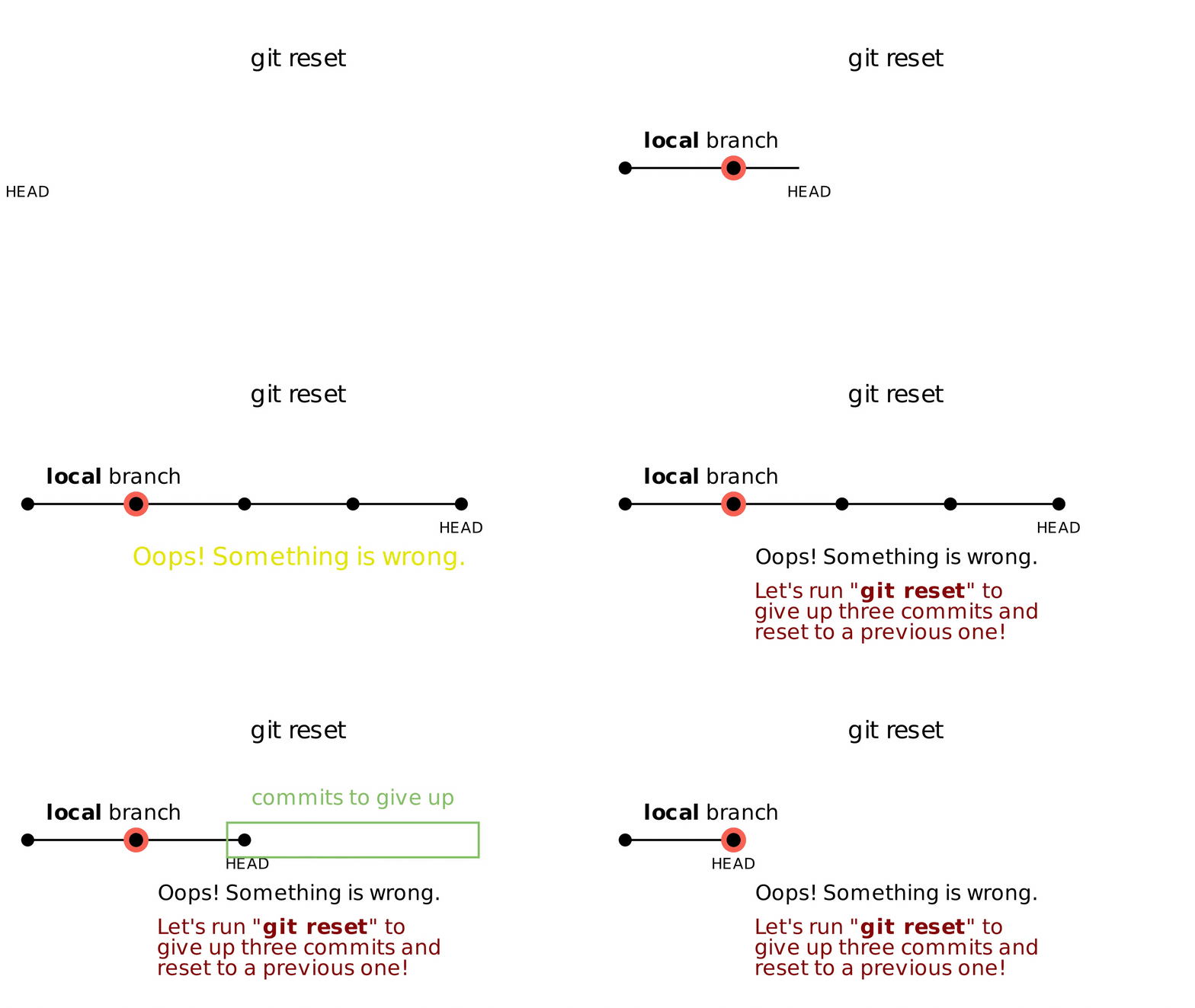
In this page, we’ll explore how to use these commands to navigate your project’s timeline, whether you need to fix mistakes, remove unwanted changes, or simply clean up your project’s history.
Benefit of Reverting and Resetting#
Some people argue there’s no need to revert or reset. If a bug is discovered, it’s easier to simply create a hotfix branch or a new commit and fix the bug there. Why bother time traveling? The answer for this question differs for reverting and resetting.
Benefit of Reverting#
Since reverting creates a new commit rather than rewriting history, it’s safe to use in shared repositories without risking conflicts with others’ work. Besides, git revert preserves the history. A clear record of the revert shows the changes were undone, which is important for traceability and understanding the evolution of the codebase in collaborative environments.
For example, a bug is discovered in the “main” branch. All of your teammates have pulled that commit in history into their local copies. How to safely undo this commit and keep the rest of the history intact? A good way to do it is to git revert after team discussion. Reverting will create a new commit that undoes the problematic commit. After that, your teammates will not face conflicts or missing history when they update their local copies. This is why git revert is preferable in this case. You don’t need to rewrite any history to cause confusion. Your teammates can all see this new revert commit and pull the latest changes. This keeps everyone’s history consist.
Benefit of Resetting#
Suppose you’ve been working on a feature branch and realize that some of your commits are problematic or redundant. You might want to remove these commits to keep your history clean before pushing it to the remote repository. In this case, creating a new commit to remove those problematic or redundant code is clearly not a good idea. Instead, it’s better to simply discard these commits in history by using git reset. This is one good example of using git reset. In short, you can consider using it when:
- you need to remove or revise recent local commits before pushing to a remote branch;
- you want to go back to a previous state in your branch and possibly start over from there;
- you want to clean up your local history before sharing your work with others.
Reverting#
How to actually use git revert? First, we need to check the history and find the target commit to revert. The command to check commit history is git log. If your repository already has lots of commits, we can make the output tidier by adding a --oneline flag:
$ git log --oneline
199e949 (HEAD -> main origin/main) commit message A
5c0c67f commit message B
9386726 commit message C
53a8c5e commit message D
71b84bb commit message E
Suppose we need to revert the commit 5c0c67f. To quit the log, press key q. After we use git revert, we can see a new file with the commit message open:
Revert "commit message B"

This reverts commit 5c0c67f8ded8ae667e2c0614e7f3e8b6cd3e0913.

# Please enter the commit message for your changes. Lines starting
# with '#' will be ignored, and an empty message aborts the commit.
#
# On branch main
# Your branch is up to date with 'origin/main'.
#
# Changes to be committed:
#       modified:   xxx.md
Depending on your OS setting, the editor could be Vim or Nano. No matter which editor is being used, all we need to do is to quit and the new commit message will be automatically saved.
Now you should see the outcome of git revert in terminal:
$ git revert 5c0c67f
Auto-merging xxx.md
[main fa10948] Revert "commit message B"
 2 files changed, 2 insertions(+), 4 deletions(-)
Also, a new revert commit fa10948 will be added in your history:
fa10948 (HEAD -> main) Revert "commit message B"
199e949 (origin/main) commit message A
5c0c67f commit message B
9386726 commit message C
53a8c5e commit message D
71b84bb commit message E
That’s it! Now you can push your changes and inform your teammates that reverting in “main” branch has been done. They can update their local branches afterwards.
Resetting#
Compared to reverting, git reset will not create a new commit. This means resetting will rewrite history and thus can cause issues for other team members who have pulled the removed commits. That’s why git reset is best used in local, non-shared branches where you control the history. Think twice before you reset the shared branches!
The following example shows you how to reset the new revert commit in the previous section. At the moment, our HEAD is pointing at the revert commit fa10948. We need to discard it and get back to the old HEAD 199e949. Simply follow the instruction below:
$ git reset --hard 199e949
HEAD is now at 199e949 commit message A
Nice! We should see the revert commit disappear in history:
$ git log --oneline
199e949 (HEAD -> main origin/main) commit message A
5c0c67f commit message B
9386726 commit message C
53a8c5e commit message D
71b84bb commit message E
That’s it. The revert commit is now gone.
--hard is one of a few available modes for git reset. The others are --soft and --mixed. In comparison with --hard, --soft will remove the commits you “reset” from the history, but the changes introduced by those commits are still in your staging area, ready to be committed again. Similarly, --mixed will also remove the commits you “reset”, but the changes from the reset commits are unstaged instead. If you don’t remember what staging area means, page 2 gives a good explanation. Please go back and check it out!
Here’s a summary of different modes of git reset:
| Mode | Commit History | Staging Area | Working Directory |
|---|---|---|---|
--soft |
Reset | No Change | No Change |
--mixed |
Reset | Reset | No Change |
--hard |
Reset | Reset | Reset |
But what if we regret and want to restore the revert commit? Don’t worry! There’s a way to find it:
$ git reflog
199e949 (HEAD -> main, origin/main) HEAD@{0}: reset: moving to 199e949
fa10948 HEAD@{1}: revert: Revert "commit message B"
199e949 (HEAD -> main, origin/main) HEAD@{2}: commit message A
5c0c67f HEAD@{3}: commit message B
...
Git records almost every change you made, including those discarded commits. You can use git reflog to print out the full history and find the revert commit fa10948. To get back to it, you can use git revert or git reset depending on your needs.
Moving On#
Now that you’ve mastered the art of undoing latest changes with git revert and git reset, you’re well-equipped to manage your project’s history with confidence. These powerful tools allow you to correct mistakes and refine your code, ensuring that your project stays on track.
But how to remove a specific commit in the middle of commit history? Unfortunately, reverting and resetting don’t possess this power. We will explore how it can be done in the next page.
Before we explore a popular workflow for collaborative projects, we need to learn one more crucial skill: merging and rebasing branches. See you in the next page!