



You are here
 » Labs » Week 4: Cabal and CodeWorld
In this lab, we will meet the Cabal package manager, which helps us work on
projects with dependencies between multiple files. We will then program with the
codeworld-api library, which provides us with types and functions for drawing and
transforming various shapes.
The content of this lab will be very useful for Assignment 1 Part B, and for Assignment 2.
Table of Contents
Pre-lab Checklist
- You should be comfortable using command line arguments in the terminal, as in the Week 1 lab.
- You should be comfortable using Git Integration with VSCodium, as in the Week 2 lab.
- You should be able to read type signatures of functions in Haskell.
- You should be comfortable with writing function definitions, as in the Week 3 lab.
Learning Outcomes
- Read external documentation and understand how to use functions based on the type signature and description.
- Use the cabal package manager to maintain modules with internal dependencies.
- Use the codeworld-api library to draw shapes based on requirements.
- Gain introductory understanding in using lists.
Getting Started
-
Go to the project’s dashboard under the Project tab and click on the Fork button. The Gitlab url for this lab is https://gitlab.cecs.anu.edu.au/comp1100/comp1100-lab04
-
You will be asked where to fork the repository. Click on the user or group to where you’d like to add the forked project. You should see your own name here. Once you have successfully forked a project, you will be redirected to a new webpage where you will notice your name before
> project-name. This means you are now the owner of this repository. The url in your browser should reflect the change: https://gitlab.cecs.anu.edu.au/uXXXXXXX/comp1100-lab04 -
Finally, clone your forked repository to your computer according to the instructions in the Week 2 Lab.
Cabal build tool
For this lab, we are using cabal: a build tool for Haskell that avoids the need to build all of the pieces of your project separately. The comp1100-lab04.cabal file lists all the requirements for the project. You do not need to understand how this file is written. In your own time, if you are interested feel free to explore the file with the documentation here.
There are several useful commands for cabal:
Cabal commands are executed in Terminal using Bash (not in ghci).
cabal v2-build
Compiles all of the necessary Haskell files needed for the project.
cabal v2-run
Runs the executables, compiling files as necessary. In this case, it will run Main.hs by default as listed in the .cabal file.
cabal v2-repl
REPL stands for Read-Eval-Print Loop. This will launch the GHCi interpreter and load the main program.
You will execute these cabal commands in the top-level directory of your project, the directory containing the
.cabal file (i.e., the directory you are in when you clone/launch the VSCodium Terminal tool for your project). You
can check the presence of .cabal file by using the bash command ls we learnt in week 1.
Modules
This project has a framework that divides the functionality into three primary files in the src folder: Model.hs,
View.hs, and Controller.hs. This partitioning of functionality is called the
Model-View-Controller (MVC) software architecture. It is a common pattern
used in implementing graphical user interfaces (GUI).
This lab does not use Model or Controller since all the functionalities can be captured with the View module (as we will only be drawing pictures directly to the screen, and not reading any input from the keyboard or mouse). The information in this section is intended only to help guide you through Assignment 1 Part B, which does use this architecture.
The reason that the program is broken up like this is to increase readability and maintainability (so that you can find and fix problems more easily) by grouping related functions together. Moreover, there may be some functions in one module that other modules do not need. With modularisation, you can control what is exposed to other modules and what you want to use when importing.
Model
The Model defines the abstract problem domain, independently of the user interface. The Model.hs has been left empty in this
lab since we are only using types that are already defined in the codeworld-api.
View
The View defines how we render the model for presentation to the user, in graphical form. In this lab, we will be
using codeworld-api functions for drawing shapes. All the functions in this lab will be implemented in this module
View.hs.
Controller
The Controller implements the GUI-based mouse and keyboard input functionality of the application, allowing users to control the application.
CodeWorld API
This week we will be using the CodeWorld API (Application Programming Interface) to draw graphical pictures in a browser window. The API helps you easily draw pictures to the screen by writing Haskell code, using shapes, colours and transformations.
Let us begin by understanding the given lines of code.
Double click on the file Lab04/src/View.hs. You should see code as follows:
module View where

import CodeWorld

myPicture :: Picture
myPicture = blank
This line imports the functions defined by the CodeWorld API:
import CodeWorld
The next few lines declare a variable with name myPicture of type
Picture (“::” is pronounced “has type”), and defines its value to be
blank:
myPicture :: Picture
myPicture = blank
You can think of myPicture as a function that takes no input, and returns
something of type Picture. The idea of a function taking no input might seem strange,
but just as we can have functions that take one input, \(f(x) = 2x\) or
functions that take two inputs, \(f(x,y) = x+y\), we can have a function that takes no
inputs, \(f() = 3\). Note how unlike functions in previous labs,
there is no variable describing the input.
Documentation for CodeWorld can be found at https://hackage.haskell.org/package/codeworld-api/docs/CodeWorld.html.
In this lab, we will focus on reading the documentation and using it to write functions. So, at any time during this lab (or later), feel free to refer to the documentation if you are not sure of how a function works. We suggest you open the documentation on a separate tab in your browser for ease of use.
The Picture type and the value blank were imported from the CodeWorld API library. They are not part of the standard
Haskell Prelude that defines the standard types such as Int, Double etc. So the import statement is necessary before
you can use any of these functions.
Double click on the file Lab04/src/Main.hs. You should see code as follows:
module Main where

import CodeWorld
import View

main :: IO ()
main = drawingOf myPicture
This imports the functions defined in the local View module:
import View
Before we explain the following lines
main :: IO ()
main = drawingOf myPicture
let’s have a look at what the functions in this module can achieve.
A blank screen
Make sure you are in the top-level directory. In the terminal, execute cabal v2-run:
$ cabal v2-run
Resolving dependencies...
Configuring comp1100-lab04-1.0...
Preprocessing executable 'Main' for comp1100-lab04-1.0..
Building executable 'Main' for comp1100-lab04-1.0..
[1 of 4] Compiling Controller       ( src/Controller.hs, dist/build/Main/Main-tmp/Controller.o )
[2 of 4] Compiling Model            ( src/Model.hs, dist/build/Main/Main-tmp/Model.o )
[3 of 4] Compiling View             ( src/View.hs, dist/build/Main/Main-tmp/View.o )
[4 of 4] Compiling Main             ( src/Main.hs, dist/build/Main/Main-tmp/Main.o )
Linking dist/build/Main/Main ...
Running Main...
Open me on http://127.0.0.1:3000/
Click on http://127.0.0.1:3000/ to open your Web browser at that link. What you
see should not be too surprising, since myPicture was defined to be blank.
Based on this, we can re-visit
main :: IO ()
main = drawingOf myPicture
So, main is the name of a function that invokes a drawingOf function. If we explore the CodeWorld
documentation, we find the following:
drawingOf
:: Picture --The picture to show on the screen (in this case, myPicture).
-> IO ()
-- Draws a Picture.
What do you need to know about IO ()? I/O (Input/Output) allows you to write programs that have input and output while they run.
The type (), also known as the unit type, contains one element only, and here means only that the function is not intended to return anything useful, but causes side-effects
(in this case, drawing pictures to the screen).
The function drawingOf takes a Picture as an argument and performs an output action but does not return anything useful.
Note: You are more than welcome to explore IO in your own time, but we will not invest time on this topic during this course. The only functions that you will be expected to write in this course will always be side-effect free.
Drawing a shape
Drawing a blank does not seem very useful. Let us draw something more interesting.
Before we get started, it may be useful to draw a grid.
Exercise 1 Coordinate Plane

myPicture function so it returns a coordinate plane.You can use the CodeWorld documentation to find the appropriate function to draw such a plane. In this case, we will guide you towards the function required.
Once you have navigated to the webpage with the documentation, we can explore the Pictures section since we are looking to return an output of the type Picture. In this section, we can
see that the only function that meets our requirements would be coordinatePlane (scroll down the page a little to find it).
coordinatePlane :: HasCallStack => Picture
Feel free to ignore the HasCallStack term, which you will also find in any function of the type Picture. For anyone interested,
=> is called the typeclass constraint, a concept we will explore later in this course.
Ignoring those details, we can read the type signature as follows:
coordinatePlane :: Picture
Now, we can modify the drawing by changing the function myPicture:
myPicture = coordinatePlane
In order to test the function:
-
If you are still running the program displaying a blank screen, click on the Terminal and press
Ctrl+c. This will kill the process that was running the previous I/O action. You can then reload the module usingcabal v2-run.Linking dist/build/Main/Main ... Running Main... Open me on http://127.0.0.1:3000/ ^C $ cabal v2-run Preprocessing executable 'Main' for comp1100-lab04-0.1.0.. Building executable 'Main' for comp1100-lab04-0.1.0.. Running Main... Open me on http://127.0.0.1:3000/ -
If you had already closed the program earlier, you can follow the instructions provided earlier to draw the blank screen.
Submission required: Exercise 1 Coordinate Plane
What is a coordinate plane?
This plane combines two axes:
- The first axis line is horizontal, with positive numbers to the right and negative numbers to the left. You can use this axis to describe how far left or right to draw a picture.
- The second axis line is vertical, with positive numbers on top, and negative numbers on the bottom. You use this axis describe how far up or down to draw a picture.
You might also have heard of this grid by the name of a cartesian plane.
Exercise 2 Rectangle
Now that we have a grid, lets draw a shape. We will start with a rectangle. Draw a rectangle with a width of 2 units and height of 2 units.
You can use the appropriately named rectangle function with the type signature:
rectangle :: HasCallStack => Double -> Double -> Picture
Again, ignore the HasCallStack term, so we can read the type signature as follows:
rectangle :: Double -> Double -> Picture
myRectangle that returns a rectangle of width and height of 2 units.The function should have the following type signature:
myRectangle :: Picture
Accessing cabal interpreter session
While cabal v2-run configures, builds and runs the executable, it may be useful to make the modules available in an
interpreter session by using cabal v2-repl. Again, you need to be in the top-level directory to execute the cabal
command.
$ cabal v2-repl
Preprocessing executable 'Main' for comp1100-lab04-0.1.0..
GHCi, version 8.6.5: http://www.haskell.org/ghc/  :? for help
[1 of 4] Compiling Controller       ( src/Controller.hs, interpreted )
[2 of 4] Compiling Model            ( src/Model.hs, interpreted )
[3 of 4] Compiling View             ( src/View.hs, interpreted )
[4 of 4] Compiling Main             ( src/Main.hs, interpreted )
Ok, four modules loaded.
*View>
In this session, you will be able to try out your existing code and also, test built-in functions in the loaded modules. It may also be useful to load modules outside the project and experiment with functions together with the already available modules.
You will find using cabal v2-repl very helpful for debugging code both here and in the assignment.
Try out the following.
*View> drawingOf (thickRectangle 2 10 6)
Open me on http://127.0.0.1:3000/
Program is starting...
Feel free to use cabal v2-repl throughout the lab.
Exercise 3 Combining shapes
You can use the (&) function to combine the pictures: the coordinate plane and rectangle. which you can read as “and” or “in front of”.
myPicture function so the output of the function looks like the following:
Hint: You can use the (&) function as follows. It can only combine two pictures at a time:
combinedPicture = picture1 & picture2
In this case, picture1 will be in front of picture2.
Test your function on your browser by following the steps in Exercise 1.
Submission required: Exercise 3 Rectangle on coordinate plane
Exercise 4 Make it solid
So you’ve just drawn an outline of a rectangle. What about a solid rectangle? Or a solid circle? Refer back to the CodeWorld API documentation if you are stuck.
myRectangle' that returns a solid rectangle with the same dimensions as myRectangle.
Submission required: Exercise 4 Solid Rectangle
Transforming shapes
In CodeWorld, a transformation is a sort of function whose inputs are the original picture, along with a description of how to change the picture (colouring, moving, stretching etc.). The transformation produces a new picture that is like the original except for that change. There are a few different transformations such as colouring, translation, rotation, dilation, and scaling.
Exercise 5 Translation
The translated function can change the position of a picture within the coordinate plane. The function takes as arguments
the original picture and two distances to move the picture, and returns a new picture with the same content as the original,
but shifted either horizontally, or vertically, or both. Check the documentation to find out the type signature of the
function and learn its usage.
myRectangle' function to move the solid rectangle 3 units to the right and 2 units down.
Submission required: Exercise 5 Translated Rectangle
Exercise 6 Colouring
The coloured function modifies the colour of a picture. The function takes as arguments the original picture and an input
of type Colour. The output is a new picture with a colour depending on the input of the function. Check the documentation
to find out the type signature of the function and learn its usage.
colouredRectangle function that does not take any input but returns a blue myRectangle'.Submission required: Exercise 6 Coloured Rectangle
Exercise 7 Create a logo
Let’s use these tools to design a cool logo. This is definitely not the logo of a big tech company!

Call the function colouredSquares.
You will need to use the colours blue, yellow, green and orange.
Submission required: Exercise 7 Logo
Exercise 8 Rotation
The rotated function takes two arguments: the original picture, and an angle to rotate it. With this transformation,
the result is a new picture that has been rotated but retains all other features of the original picture.
Remember that rotated function needs the input angle in radians and will turn the picture anticlockwise.
colouredSquares so the function now returns the shape but rotated 45 degrees.
For more transformations, you can check out the scaled and dilated functions along with their usage on CodeWorld API documentation. Try to use these transformations on the drawings we have already generated.
Submission required: Exercise 8 Rotated Logo
Exercise 9 Drawing Lambda
In this exercise, we will be using lists, which were introduced in the lectures. We will only be using them to draw simple shapes, so you are not required to know how to write functions that manipulate lists yet - we will be exploring this in more detail next week.
Custom shapes (lines and polygons) can be implemented using built-in functions in CodeWorld. We can use coordinates to define pictures composed of a sequence of line segments.
For example, try the following:
simpleLambda = coordinatePlane & polyline [(3,7), (7,1), (5, 4), (3,1)]
How does polyLine work?
If we look at the type definition for polyLine (ignoring HasCallStack) in the codeworld documentation:
polyLine :: [Point] -> Picture
What is a Point? If we click on Point in the documentation, we discover:
type Point = (Double, Double)
We have seen tuples before in Lab03. (Check them out there if you don’t remember.)
Point is simply a pair of Doubles that represent a location in the coordinate plane. This means
that the function polyLine takes a list of these Points and draws line segments in between them.
myPicture in the file so we can now visualize the drawing in the browser.lambda = coordinatePlane & polyline [(3,6), (7,0), (5, 3), (3,0)] & polyline [(2,6), (4,3), (2,0)]
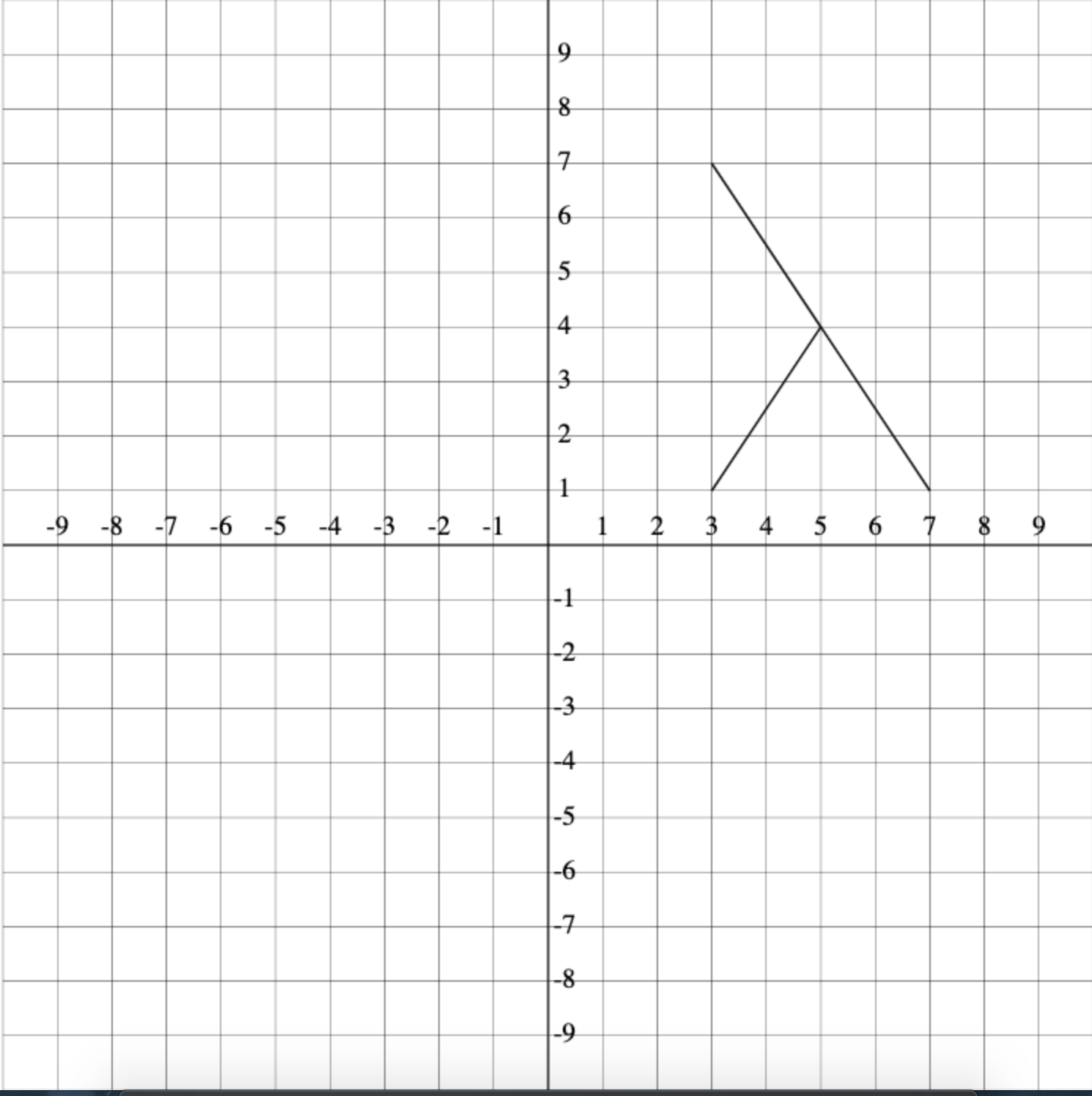
solidLambda that creates a drawing as below:
Submission required: Exercise 9 Drawing Solid Lambda.
You are required to submit your attempts at the exercises above in order to receive full participation marks for this lab. You have until the start of your next lab to do this. You should submit by committing and pushing all your changes to your Gitlab repository.
Scheduling and Payment System [Optional]
These exercises should only be attempted after completing all the exercises above. Feel free to do this at home and discuss with your peers on Piazza, or with tutors at a drop-in consultation.
The following exercise is independent of the previous lab content for this week. The exercise is designed to reinforce content from previous week and to introduce lists briefly before formally tackling them next week.
Suppose we are developing part of a system to manage the scheduling and payment of casual workers. The days of the week and times of the day they work varies, and different people have different rates of pay, presumably based on their age, experience or ability.
Don’t forget to add the module declaration to the file: module Scheduling where.
A good way to represent the days of the week is as an enumeration:
data Day = Mon | Tue | Wed | Thu | Fri | Sat | Sun
deriving (Eq, Show)
To keep things relatively simple, assume that times are represented as a Double number of hours between 0 and 24. Rates of pay are given as a Double number of dollars per hour.
type Time = Double
type Rate = Double
A single work period will be represented as a day, a start time and a finish time: (Working past midnight will be represented as two separate work periods.)
type WorkPeriod = (Day, Time, Time)
weekend to test whether a given day is on the weekend (Sat or Sun).weekend :: Day -> Bool
weekend = undefined
Different workers are paid at different rates, and all workers receive 50% bonus pay on weekends.
pay that takes as arguments the hourly rate paid to a given worker, and a particular work period.The pay function should calculate the total pay for this work period, at that hourly pay rate. If the work period falls on a weekend (which you can check with your weekend function) the total pay should be 1.5 times the normal pay.
pay :: Rate -> WorkPeriod -> Double
pay = undefined
A worker’s weekly work schedule could be represented as a list of work periods, as follows:
type Schedule = [WorkPeriod]
grossPay which, using your pay function, calculates the total pay that a worker will receive for their weekly schedule.grossPay :: Rate -> Schedule -> Double
grossPay = undefined
For Occupational Health and Safety reasons, the business is required to record the number of hours each employee works during their weekly schedule.
totalHours which calculates the total number of hours in a schedule.totalHours :: Schedule -> Double
totalHours = undefined
References
[1] Cabal User Guide, https://www.haskell.org/cabal/users-guide/index.html [2] CodeWorld API library, https://hackage.haskell.org/package/codeworld-api/docs/CodeWorld.html#g:2