Outline
In this lab you will:
- Explore the different types of Lights available in p5.js
- Look at the properties of Cameras
- Investigate how Materials interact with Lights and Cameras
- Understand the difference between Textures and Materials and how you can use these to add realism to a 3D virtual environment
Introduction
Welcome to Lab 3 of EXTN1019B!
So far we have looked at 3D objects, and some materials and lighting — as well as transformations we can apply to 3D objects to place them, orient them, scale them and move them in a scene.
Today we will explore Lights, Cameras, Materials and Textures in more depth.
Do: Fork, Clone and open this lab’s template repository:
Lights
As discussed previously, one of the big differences between 2D and 3D is that in 3D we places objects and their appearance (colour and shading) is determined by Lighting interacting with Materials, as seen through a virtual Camera.
It is important to understand how Lights work in p5.js, but you may also be interested in how lights work in other 3D rendering systems (e.g. Blender).
More realistic rendering techniques, including Ray Tracing, Path Tracing, Photon Mapping and Radiosity are too compute-intensive to be used in realtime applications, such as p5.js sketches. When we look at Shaders, we will be able to add realism, and other compute-expensive effects, to improve our visualisations.
For most applications we will need a variety of 3D lights to make our 3D environments shine!
Lighting Decomposition
Ambient Light
The word ambient means, in this context, “surrounding”. An ambient light creates a light source that shines evenly on all 3D faces. Our “real world” does not have ambient light - as even diffuse indoor lighting, or the diffuse light on a cloudy day, still has a primary directional source, and sides of objects away from this light will be darker then sides which face the source of the light (e.g., towards the sky on a cloudy day).
Ambient light interacts with ambientMaterial(). If you created a red ambient light, and had an object with a green ambient material, the object would not respond to the light.
Read more about ambientLight() here.
How much ambient light do you need. In the sketch provided, you can adjust the ambient light using the “R”, “G” and “B” keys. Caps (SHIFT pressed) makes the values go up, otherwise the values go down. How bright should your ambient lighting be.
Instead of adjusting ambient light using interaction, can you apply different ambient lighting to different objects? Add a parameter ambience to the function drawTorus() which will set the ambient lighting value to use when rendering the torus.
Change the ambient lighting value in the loops which call drawTorus(). Do you get different colours/shades on different toruses?
/**
 * draw a torus at position "loc" with rotational phase "p"
 * @param {*} loc - the position to draw the torus in the world
 * @param {*} phase - the phase of the rotation for this torus
 * @param {*} ambience - the ambient lighting for this torus
 */
function drawTorus(loc, phase, ambience) {
    if (ambience) { // if we were given an ambience
        ambientLight(ambience); // use that ambient light
    }
    torus(200, 60, 36, 16); // draw a torus(outside radius, tube radius, detail in X, detail in Y)
    let a = color(0, 0, 0);
    for (let i = 0; i < 16; i++) {
        p += p_delta;
        l.z -= 500;
        a = color(red(a) + 10, 0, 0); \\ increasing red values - a red gradient
        drawTorus(l, p, a);
    }
Do you notice anything which surprises you about Ambient Light? Does ambient light affect the background colour? Does ambient light on a per object basis impact ambient light on other globally lit objects? Or vice-versa?
Ambient Lights flatten a 3D object — without directional shading rendered 3D objects lose information about their shape — but this information can be recovered by using stroke() with only ambient lighting. Try it out!
Ambient Light interacts with Ambient Material. Does it only interact with ambient material?
Directional Light
directionalLight() is a type of lighting created by the function lights(). It is a light that shines with unvarying power from a given direction. Useful for simulating powerful remote light sources, such as a sun.
Directional Lights, and Point Lights and Spot Lights, interact with the diffuse colour of an object. This is defined by the fill() colour (if you are not using fancy shaders). They also impact the specular (reflective) colours, shininess and metallicity.
You can have up to 5 directional lights active in a sketch simultaneously.
Directional lights require a direction (from the world origin) that they shine from, and a colour.
The simplest way to call this is:
directionalLight(myColor, direction);
where myColor is a p5.js Color object and direction is a p5.js Vector object.
Do: Add a fill color to the torus:
    fill(120,180,150); // choose your own colour
    torus(200, 60, 20, 12); // draw a torus(outside radius, tube radius, detail in X, detail in Y)
And add a directionalLight to the scene, shining from “top,right” with a uniform grey colour:
    let dlv = createVector(-1,1,0); // direction vector is direction light is shining - not the position it shines from
    let dlc = color(150);
    directionalLight(dlc,dlv);
Add a second directionalLight to the scene, you choose the direction and colour:
Lights() or noLights()
As covered previously, lights() is a shortcut to create a default directionalLight and ambientLight in a sketch.
noLights() removes default lights, and all lights created with ambientLight(), directionalLight(), spotLight(), and pointLight() from the 3D rendering. It enables you to reset your lighting scheme for a sketch.
Point Light
A pointLight(), like a directionalLight and a spotLight, lights up diffuse material colour, specular material colour and shininess + metalness.
A point light shines from a point - like a light bulb or candle flame. It shines in all directions.
The parameters for a point light are its location (in 3D coordinates), and its colour.
The simplest way to create a point light is:
pointLight(myColour, position);
where myColor is a p5.js Color object and position is a p5.js Vector object.
You can have a maximum of 5 point lights active in a scene.
Spot Light
A spotLight combines the directionality of the directionalLight with the positionality of a pointLight. They shine from a point in space, but towards a given direction. As the light from a spot light spreads outwards from the source, the angle of the light cone can be specified, which should be between 0 and PI/2. There is another optional parameter concentration, which determines the way the light is focussed towards the centre of the light cone (i.e. the light intensity drops as the distance from the centre of the beam increases). By default the concentration value is set to 50.
You can also have a maximum of 5 spotLights active in a sketch.
Light Falloff
To simulate the behaviour of real world lights, light intensity is known to decrease with distance from the source of the light.
You can define the way you wish the simulate this behaviour using the function lightFalloff(). This only applies to pointLight and spotLight().
You can choose constant falloff, linear falloff, or quadratic falloff.
This requires careful calibration through experimentation with code to get the effect you desire.
Image Light
An Image Light can be used to help add realism to a virtual world. Ideally you have a panoramic 3D world image, and use this with both the panorama() function
and use the same image with imageLight() to enable reflections and illumination based on what the panoramic image shows in the same direction.
Of course, you could subvert expectations by using radically different images for imageLight() and panorama().
Panorama
panorama(img) creates a virtual 3D world using a 360-degree image to simulate either a real-world place,
or a virtual environment taken from some other 3D virtual world source.
To enable better visualisation of the 3D world, using orbitControl() or adding camera navigation helps to create engaging experiences.
Do: Using the supplied image, or a found 360 degree image, create a panorama and an image light for the scene.
Specular Color
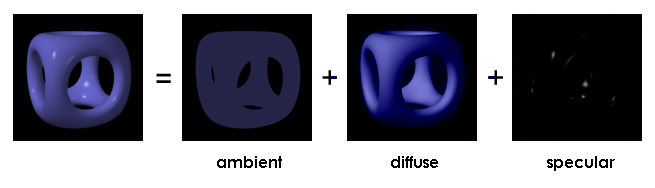
In the Lighting Decomposition image above, you can see that a 3D surface is composed of ambient illumination, diffuse colour and specular colour.
ambientLight, interacting with ambientMaterial creates the ambient illumination.
fill(), along with the shading model, creates the diffuse shading of a surface
specularColor(), in combination with specularMaterial(), shininess() and metalness() creates the specular highlights.
You can choose your specular colour to be a different colour from ambient and diffuse colours — but you might consider using colours with the same, or a similar, hue.
Cameras
The 3D world is rendered (that is, drawn) from a given point which looks in a particular direction with a given frustum and a defined far plane.
We call this collection of properties a Camera. When you create a canvas which uses WEBGL, p5.js automatically creates a default camera.
The default camera:
- uses a perspective projection
- is located at (0,0,800)
- looks at (0,0,0)
- has an up vector of (0,1,0)
- has a far plane of 8000 units from the camera (along the z-axis)
- can be rotated around the origin (0,0,0) using the mouse when
orbitControl()is called
You can create multiple cameras using the createCamera() function, and switch between cameras using setCamera().
You can control the active camera using the commands
camera()— set the orientation and position of the active cameraortho()— set the projection of the camera to orthogonalperspective()— set the projection of the camera to perspectivefrustum()— set the projection of the current camera to frustum (sort of likeperspective())linePerspective()— control how lines are rendered in a perspective projection or frustum projection.lookAt()— orients the camera to look at a certain directionpan()— rotate the camera (left<->right) without changing positionroll()— rotate the camera (left<->right) in a clockwise/anticlockwise directiontilt()— rotate the camera (up<->down) in a clockwise/anticlockwise direction
You can also set the center of the camera eye, the vector where the camera looks, and the up vector of the camera independently.
In other 3D packages you may see many more parameters for the virtual camera used to render your 3D world. These effects require advanced shaders, and can be emulated in p5.js using shaders – we will get to that next term.
Action - wait, no… MATERIALS
To simulate the effect of light hitting a surface, bouncing off, and eventually entering your eye to be perceived as a specific thing we can define materials to define aspects of the colour of a surface. Some of this has been covered above under lights, but these are some special materials you can use to enhance your virtual environment or debug your geometry.
Provided Materials
p5.js provides some basic materials for creating your virtual world.
Normal Material
normalMaterial() — a normal material is for debugging purposes despite its colourful nature. Normal materials are not affected by light. Surfaces facing the X-axis tend to blue, facing the Y-axis tend to green and facing the Z-axis tend to blue.
The other materials are impacted differently by light and can be used together to create more sophisticated materials. The standard materials use shading methods that do not cast shadows. Shadows is an advanced topic that will be left for you to explore.
Ambient Material
ambientMaterial() is a material which responds to ambient light (ambient light is non-directional)
Fill()
fill() is the same method we used in 2D to define the colour with which to fill a shape. The difference in 3D is that you are “filling” the diffuse colour of the surface of a 3D shape.
Specular Material
specularMaterial() is a material which reflects both ambient light (where colour matches the ambient light source) and directional, point and spot lights (for the colour of those lights). The intensity and “shininess” are controlled by the shininess() function.
shininess
shininess(level) the amount of gloss of a specular material (level is a number between 1 and an undefined maximum)
metalness
metalness(metallic) how much the surface resembles a metallic material. 1 is the default, low value. Higher values make the material more metallic.
Emissive Material
emissiveMaterial() is a material which appears to emit light of a given colour. Light is not actually emitted. Emitted light DOES NOT reflect any type of light source.
Images as Materials
You can import and image and use it to cover the outside of a model. The image must be imported in preLoad, and then the texture() function is used to apply the image as a texture over the model.
-
loadImage(image filepath): loads an image file. Always load images in the preload function.
-
textureMode(NORMAL IMAGE): determines the way the texture will be represented on the model, requiring the model to have the dimensions of the image (IMAGE) or to use normalised values (NORMAL). IMAGE is the default. -
textureWrap(CLAMP REPEAT MIRROR): determines how the texture will repeat/wrap on a surface. CLAMP is the default. REPEAT and MIRROR are only available if your image size is a square and is a power of 2 (3232, 6464, 128128, 256256, 512*512, …) - texture(img): tells the renderer to apply the loaded image to the surface
Code Generated Materials
This is an advanced topic and will not be covered today. It involves the use of shaders. Shaders use a Shader language (in this case, GLSL - the OpenGL Shader Language). The shader requires a vertex shader (which transform geometry positions into 3D drawing coordinates) and a fragment shader (which compute the renderings of a surface’s colors and other attributes).
Textures
A texture is a graphical thing that wraps around an object.
Textures can be images (to use an image as a material, you have to use it as a texture as noted above).
Textures can be from other graphical sources including:
- Video
- FrameBuffers
- Shaders
- Physical Cameras (streaming video)
The method texture() sets the source for the texture to be used when rendering an object.
To use a texture with custom geometry (next week), you need to ensure that the geometry has uv-coordinates.
Texture Mode
Textures map onto a surface as is the surface is a mathematical net of the 3D object.
With even simple shapes, such as a cube, you can see that a rectangular image will not map every pixel to the surface of the object.
There are 2 ways to map your uv coordinates:
textureMode(IMAGE);— use the dimensions of the source image as the range for u (width) and v (height) of the textured surfacetextureMode(NORMAL);— use the the range [0..1] for u (width) and v (height) of the textured surface
Each has a separate use case. For now, we will use textureMode(IMAGE), which is the default.
Texture Wrap
When mapping an image to a surface, the image to be mapped may be smaller than the [u,v] dimensions of the target object.
As all pixels on the surface must map to a part of the texture, you need to decide how to treat this case.
There are 3 options for textureWrap():
CLAMP— stretch the image to the edge of the objects texture coordinate spaceREPEAT— start with a new copy of the image in the dimension which has to be coveredMIRROR— like repeat, but the image will flip (mirror) in the dimension to be covered
You can specify which technique to use in both u and v dimensions:
textureWrap(MIRROR,REPEAT); // mirror texture in u, repeat in v
Apply a texture to an object in a sketch. Lab 1 has an example. Think about how you might need to use texture(), textureMode(), and textureWrap(). Can you turn an image into a wallpaper (repeating or mirrored)?
extension: p5.js is expanding. There are new material methods being added (they involve shaders, which is a topic for later). You may wish to investigate under Material, baseColorShader, baseMaterialShader, baseNormalShader, baseStrokeShader and createFilterShader to see what’s new under Materials. Note - some of these are experimental and may change with future releases of p5.js.
Remember to commit your code and push it up to Gitlab.
Summary
Congratulations! In this lab you:
- Explored Lighting in p5.js
- Played with virtual Cameras in p5.js
- Investigated how Materials interact with Lights and Cameras
- Explored how Textures and Materials are used to add realism to a 3D virtual environment